
Advanced Traffic Management Guide K/KA/KB.15.15
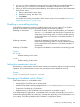
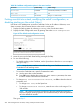

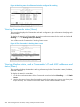
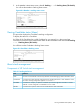
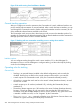
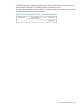
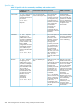
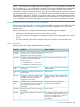


Figure 66 Stacking status for all detected switches configured for stacking
Viewing Commander status (Menu)
This procedure displays the Commander and stack configuration, plus information identifying each
stack member.
To display the status for a Commander, go to the console Main Menu for the switch and select 9.
Stacking ... —> 1. Stacking Status (This Switch).
You will then see the Commander's Stacking Status screen:
Figure 67 The Commander’s Stacking Status screen
Viewing Member status, and a Commander’s IP and MAC addresses and
status (Menu)
This procedure displays the Member's stacking information plus the Commander's status, IP address,
and MAC address.
To display the status for a Member:
1. Go to the console Main Menu of the Commander switch and select 9. Stacking ... —> 5. Stack
Access.
2. Use the downarrow key to select the Member switch whose status you want to view, then press
X (for eXecute). You will then see the Main Menu for the selected Member switch.
284 Stack management for the 3500, 3500yl, 6200yl and 6600 switches