
Advanced Traffic Management Guide K/KA/KB.15.15

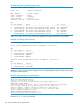

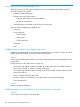
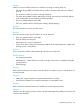
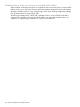
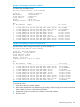
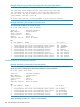

Example 189 Viewing show stacking stack-ports output
HP Stack 3800#: show stacking stack-ports
Stack Peer Peer
Member Port State Member Port
------ ----- ----- ------ ----
1 1 Up 2 1
1 2 Up 3 2
1 3 Up 4 3
1 4 Down 0 0
2 1 Up 1 1
2 2 Up 3 1
2 3 Down 0 0
2 4 Up 4 4
3 1 Up 2 2
3 2 Up 1 2
3 3 Up 4 1
3 4 Down 0 0
4 1 Up 3 3
4 2 Down 0 0
4 3 Up 1 3
4 4 Up 2 4
If you specify specific stack members in the command, then the stacking port information for those
members displays.
Troubleshooting stacking
Troubleshooting OOBM and split stack issues
If all the OOBM ports in the stack are in the same VLAN, you can use the show oobm commands
to view the current state of all the switches. For example, if you have a five-member chain and
member 4 fails or has the power removed, a stack split will occur with an active fragment on
members 1-2-3 and an inactive fragment on member 5.
There is one IP address for the active fragment. This can be statically set by assigning an IP address
to the global OOBM port.
If the stack splits, you can connect to the Active Fragment using the global OOBM IP address and
then enter the show oobm discovery command to see if this active fragment has discovered
any other members that are connected using the OOBM LAN.
In the following five member chain example, connect using the global IP address of 10.0.11.49.
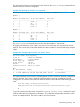
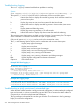
Once logged on, enter the show stacking command.
Troubleshooting stacking 301