
Advanced Traffic Management Guide K/KA/KB.15.15



1. From the Main Menu select: 2. Switch Configuration —> 8. VLAN Menu … —> 3. VLAN Port
Assignment
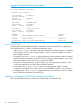
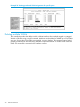
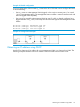
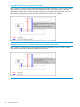
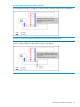
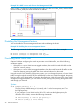
You will see a screen similar to the following:
Figure 6 Port-based VLAN port assignment screen in the menu interface
NOTE: The "VLAN Port Assignment" screen displays up to 32 static, port-based VLANs in
ascending order, by VID. If the switch configuration includes more than 32 such VLANs, use
the following CLI command to list data on VLANs having VIDs numbered sequentially higher
than the first 32.
show vlans [ VID | ports [ port-list ]]
2. To change a port's VLAN assignment:
a. Press E (for Edit).
b. Use the arrow keys to select a VLAN assignment you want to change.
c. Press the Space bar to make your assignment selection (No, Tagged, Untagged , or
Forbid.
d. If you are finished assigning ports to VLANs, press Enter and then S (for Save) to activate
the changes and return to the Configuration menu. (The console then returns to the VLAN
menu.)
3. Return to the Main menu.
NOTE: For GVRP Operation: If you enable GVRP on the switch, No converts to Auto, which
allows the VLAN to dynamically join an advertised VLAN that has the same VID.
Untagged VLANs Only one untagged VLAN is allowed per port. Also, there must be at
least one VLAN assigned to each port. In the factory default
configuration, all ports are assigned to the default VLAN
(DEFAULT_VLAN).
For ports A4 and A5 to belong to both DEFAULT_VLAN and VLAN-22, and ports A6 and A7 to
belong only to VLAN-22, use the settings in “The default VLAN names screen” (page 25). The
default GVRP setting is disabled and it is assumed that you do not plan to enable GVRP later.
Adding or changing a VLAN port assignment (Menu) 33