
Advanced Traffic Management Guide K/KA/KB.15.15


Creating a zone class
To use Transparent Mode, you create a zone class and use the port-list command to specify
the ports that belong to a zone class. By default, the HP 5400zl or 8200zl switch supports a
maximum of ten zones. Two are created automatically—BYPASS and SWITCH_SELF.
• BYPASS—contains the ports that should not be included in your Transparent Mode
configuration. That is, the switch will not intercept traffic sent to or from the ports in the BYPASS
zone. By default, all ports on the switch become part of the BYPASS zone, until you assign
the ports to a different zone.
• SWITCH_SELF—contains only the switch. You cannot add any ports to this zone.
In addition to these two zones, you can create eight zones for a total of 10 zones.
Use the following guidelines when assigning ports to zones.
• The switch ports you add to a zone can be in different VLANs.
• Each switch port can belong to only one zone.
• If a port is already associated with a zone, adding the port to another zone removes that port
from its existing zone and adds it to the new zone.
• Ports cannot be added to the SWITCH_SELF zone.
You may also need to create a zone for the ONE Application. Consult the HP Installation and
Getting Started Guide for your ONE application.
The zone classes you configure will be used later in the zone policies you create.
To configure a zone class to be used in one or more policies, follow these steps:
1. Enter the class zone command from the global configuration context.
Context: Global configuration
Syntax:
[no] class zone zone name
Defines a zone class, where zone name is a text string (64 characters maximum).
After you enter the class zone command, you enter the class zone configuration
context. For transparent mode, you can then enter the port-list you want to define
for this zone.
2. Enter the port-list command from the class configuration context to determine the ports
on which policy actions will be performed.
Context: Class configuration
Syntax:
[no] port-list [ethernet] port
Defines the port or ports that are assigned to this zone class. A port may belong
to only one zone; if a port is already associated with a zone, adding the port to
another zone removes that port from its exiting zone and moves it to the new zone.
3. Enter the exit command to exit the class configuration context.
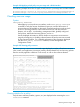
4. To display all the classes configured, including the zone classes, enter the show class
command. To display a specific zone class configuration, enter the show class zonezone
name command.
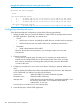
5. To edit a class configuration, re-enter the class configuration context (class command) and
enter new port-list statements as follows:
6. To remove a port from the zone class, enter the no port-list port command.
Creating a zone class 365