
R211x-HP Flexfabric 11900 Fundamentals Command Reference


103
Usage guidelines
You can perform this operation only after you log in to the FTP server.
To upload a file in the working directory accessed by the ftp command, the localfile argument must
specify a file name such as a.cfg.
To upload a file in some other directory, the localfile argument must specify the target directory plus the
file name such as flash:/subdirectory/a.cfg. Otherwise, the command fails to take effect.
Examples
# Upload the file a.txt in the working directory accessed by the ftp command and save the file as b.txt
on the FTP server.
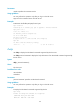
ftp> put a.txt b.txt
local: a.txt remote: b.txt
150 Connecting to port 47461
226 File successfully transferred
1569 bytes sent in 0.000671 seconds (2.23 Mbyte/s)
# Upload the file a.txt in the folder test from the working directory accessed by the ftp command and
save the file as b.txt on the FTP server.
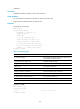
ftp> put flash:/test/a.txt b.txt
local: flash:/test/a.txt remote: b.txt
150 Connecting to port 47461
226 File successfully transferred
1569 bytes sent in 0.000671 seconds (2.23 Mbyte/s)
# In standalone mode, upload the file a.txt in the root directory of the storage medium on the standby
MPU (in slot 4) and save the file as b.txt on the FTP server.
ftp> put slot4#flash:/test/a.txt b.txt
local: slot4#flash:/test/a.txt remote: b.txt
150 Connecting to port 47461
226 File successfully transferred
1569 bytes sent in 0.000671 seconds (2.23 Mbyte/s)
# In IRF mode, upload the file a.txt in the Flash root directory of MPU 1 (in slot 5) of member device 1
and save the file as b.txt on the FTP server.
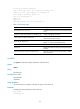
ftp> put chassis1#slot5#flash:/test/a.txt b.txt
local: chassis1#slot5#flash:/test/a.txt remote: b.txt
150 Connecting to port 47461
226 File successfully transferred
1569 bytes sent in 0.000671 seconds (2.23 Mbyte/s)
Related commands
get
pwd
Use pwd to display the currently accessed directory on the FTP server.
Syntax
pwd