
R211x-HP Flexfabric 11900 Fundamentals Configuration Guide

2
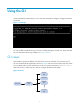
You are placed in user view immediately after you log in to the CLI. The user view prompt is
<Device-name>, where Device-name indicates the device name. The device name is Sysname by default.
You can change it by using the sysname command.
In user view, you can do the following:
• Perform basic operations including display, debug, file management, FTP, Telnet, clock setting, and
reboot.
• Enter system view. The system view prompt is [Device-name].
In system view, you can do the following:
• Configure global settings (such as the daylight saving time, banners, and hotkeys) and some
functions.
• Enter different function views. For example, you can enter interface view to configure interface
parameters, enter VLAN view to add ports to the VLAN, and enter user line view to configure login
user attributes.
A function view might have child views.
To display all commands available in a view, enter a question mark (?) at the view prompt.
Entering system view from user view
Task Command
Enter system view. system-view
Returning to the upper-level view from any view
Task Command
Return to the upper-level view from any view. quit
Executing the quit command in user view terminates your connection to the device.
In public key view, use the peer-public-key end command to return to system view.
Returning to user view
To return directly to user view from any other view, use the return command or press Ctrl+Z.
Task Command
Return directly to user view. return
Accessing the CLI online help
The CLI online help is context sensitive. Enter a question mark at any prompt or in any position of a
command to display all available options.
To access the CLI online help, use one of the following methods: