
R211x-HP Flexfabric 11900 Fundamentals Configuration Guide

84
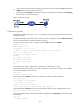
• Log in to the FTP server from the FTP client using the user account with username abc and password
123 456 (which has been created on the PC).
• Download the file temp.bin from the PC to the device, and upload the configuration file startup.cfg
from the device to the PC for backup.
Figure 31 Network diagram
Configuration procedure
# Configure IP addresses as shown in Figure 31 and make sure the device and PC can reach each other.
(Details not shown.)
# Examine the storage space of the device. If the free space is insufficient, use the delete/unreserved
file-url command to delete unused files. (Details not shown.)
# L o g i n t o t h e F T P s e r v e r a t 10 .1.1.1 u s i n g t h e u s e r n a m e abc and password 123456 .
<Sysname> ftp 10.1.1.1
Press CTRL+C to abort.
Connected to 10.1.1.1 (10.1.1.1).
220 WFTPD 2.0 service (by Texas Imperial Software) ready for new user
User (10.1.1.1:(none)): abc
331 Give me your password, please
Password:
230 Logged in successfully
Remote system type is MSDOS.
200 Type is Image (Binary)
ftp>
The message "200 Type is Image (Binary)" appears only in Release 2111 or later.
# Set the file transfer mode to binary. This step is required in a version prior to Release 2111. I n R e l e a s e
2111 or later, the default mode is binary.
ftp> binary
200 TYPE is now 8-bit binary
# Download the file temp.bin from the PC to the Flash root directory of the active MPU.
ftp> get temp.bin
local: temp.bin remote: temp.bin
150 Connecting to port 47457
226 File successfully transferred
23951480 bytes received in 95.399 seconds (251.0 kbyte/s)
# Download the file temp.bin from the PC to the Flash root directory of the standby MPU (in slot 5).
ftp> get temp.bin slot5#flash:/temp.bin
# Set the file transfer mode to ASCII and upload the configuration file startup.cfg from the device to the
PC for backup.
ftp> ascii
200 TYPE is now ASCII