
R211x-HP Flexfabric 11900 Network Management and Monitoring Configuration Guide

175
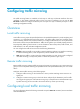
Configuring a QoS policy
Ste
p
Command
Remarks
1. Enter system view.
system-view N/A
2. Create a QoS policy and
enter the QoS policy view.
qos policy policy-name By default, no QoS policy exists.
3. Associate a class with a traffic
behavior in the QoS policy.
classifier tcl-name behavior
behavior-name
By default, no traffic behavior is
associated with a class.
NOTE:
A
fter the precedin
g
confi
g
uration, you can use the display qos policy command in any view to display
QoS policy configuration.
Applying a QoS policy
Applying a QoS policy to an interface
By applying a QoS policy to an interface, you can mirror the traffic in a specific direction on the interface.
A policy can be applied to multiple interfaces, but in one direction (inbound or outbound) of an interface,
only one policy can be applied.
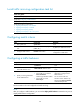
To apply a QoS policy to an interface:
Ste
p
Command
1. Enter system view.
system-view
2. Enter interface view.
interface interface-type interface-number
3. Apply a policy to the interface.
qos apply policy policy-name { inbound | outbound }
Applying a QoS policy to a VLAN
You can apply a QoS policy to a VLAN to mirror the traffic in a specific direction on all ports in the
VLAN.
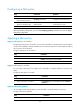
To apply the QoS policy to a VLAN:
Ste
p
Command
1. Enter system view.
system-view
2. Apply a QoS policy to a VLAN.
qos vlan-policy policy-name vlan vlan-id-list { inbound |
outbound }
Applying a QoS policy globally
You can apply a QoS policy globally to mirror the traffic in a specific direction on all ports.
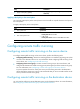
To apply a QoS policy globally:
Ste
p
Command
1. Enter system view.
system-view