
R21xx-HP FlexFabric 11900 Fundamentals Configuration Guide

3
Returning to user view
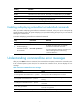
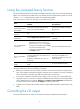
You can return directly to user view from any other view by using the return command or pressing Ctrl+Z,
instead of using the quit command multiple times.
To return directly to user view from any other view:
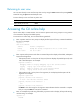
Task Command
Return directly to user view. return
Accessing the CLI online help
The CLI online help is context sensitive. You can enter a question mark at any prompt or in any position
of a command to display all available options.
To access the CLI online help, use one of the following methods:
• Enter a question mark at a view prompt to display the first keyword of every command available in
the view. For example:
<Sysname> ?
User view commands:
archive Archive configuration
backup Backup the startup configuration file to a TFTP server
boot-loader Set boot loader
…
• Enter a space and a question mark after a command keyword to display all available, subsequent
keywords and arguments.
{ If the question mark is in the place of a keyword, the CLI displays all possible keywords, each
with a brief description. For example:
<Sysname> terminal ?
debugging Enable to display debugging logs on the current terminal
logging Display logs on the current terminal
monitor Enable to display logs on the current terminal
tracing Display traces on the current terminal
{ If the question mark is in the place of an argument, the CLI displays the description of the
argument. For example:
<Sysname> system-view
[Sysname] interface vlan-interface ?
<1-4094> Vlan-interface interface number
[Sysname] interface vlan-interface 1 ?
<cr>
[Sysname] interface vlan-interface 1
<1-4094> is the value range for the argument. <cr> indicates that the command is complete
and you can press Enter to execute the command.
• Enter an incomplete keyword string followed by a question mark to display all keywords starting
with that string. For example:
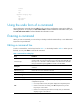
<Sysname> f?
fixdisk