
R21xx-HP FlexFabric 11900 Fundamentals Configuration Guide


106
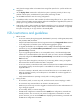
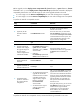
Ste
p
Command
Remarks
6. (Optional.) Accept the
upgrade and delete the
automatic-rollback timer.
issu accept N/A
7. Complete the ISSU
process or roll back to
the original software
configuration.
• To upgrade the original active
MPU and complete the ISSU:
issu commit slot slot-number
• To roll back to the original
software configuration:
issu rollback
Specify the slot number of the original
active MPU for the slot slot-number
option.
After the issu commit command is
completed, the ISSU process ends and
the ISSU status transitions to Init.
During this ISSU process, you can use the
issu rollback command at any point to
roll back to the original software
configuration. For more information
about rollback, see Fundamentals
Command Reference.
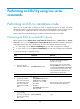
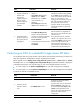
To perform an ISSU for an incompatible version, execute one of the following commands in user view:
Ste
p
Commands
Remarks
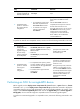
1. Upgrade the
standby MPU and
configure the
upgrade images as
the main startup
software images for
the standby MPU.
• Method 1:
issu load file { boot filename | system
filename | feature filename&<1-30> } *
slot slot-number
• Method 2:
issu load file ipe ipe-filename slot
slot-number
Specify the slot number of the
standby MPU for the slot
slot-number option.
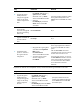
2. Complete the ISSU
process or roll back
to the original
software
configuration.
• To complete the ISSU process, perform
an active/standby switchover to upgrade
all cards except for the upgraded MPU:
issu run switchover
• To roll back to the original software
configuration:
issu rollback
After the issu run switchover
command is completed, the ISSU
process ends and the ISSU status
transitions to Init.
During this ISSU process, automatic
rollback is not supported, but you
can use the issu rollback command
to manually roll back to the original
software configuration. For more
information about rollback, see
Fundamentals Command
Reference.
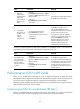
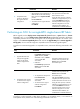
Performing an ISSU for a single-MPU device
Before upgrade, use the display version comp-matrix file { boot filename | system filename | feature
filename&<1-30> } * or the display version comp-matrix file ipe ipe-filename command to display the
compatibility between the new and old images as well as the upgrade methods to be used. If a new
image is on the Version compatibility list and the value of the Upgrade Way field is Service Upgrade or
File Upgrade, the new and old images are compatible and an incremental upgrade applies.
To perform an incremental upgrade to a compatible version, execute the following commands in user
view: