
HP ProLiant BladeSystem p-Class System Maintenance and Service Guide

Diagnostic Tools 64
• Gather fault information.
• Re-populate chassis serial numbers following a backplane replacement.
Connecting to the Service Port
A connection to the service port requires a client PC with the minimum components:
• Serial connector
• Terminal software
Also, locate the null-modem cable that ships with the bus bars or power bus boxes.
To connect to the service port:
1. Connect the null-modem cable to the service port. Refer to Chapter 4, “Connectors, LEDs, and Switches,” for
service port locations.
2. Connect the other end of the null-modem cable to the client PC.
3. Power on the client PC.
4. Run the terminal software.
Configuring Terminal Settings
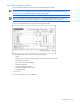
To complete the connection to the service, use terminal software, such as Microsoft® Windows® HyperTerminal or
Minicom for Linux. Be sure to configure the following settings:
• 9600 bps
• No parity
• 8 data bits
• 1 stop bit
• Software flow control, may also be called XON/XOFF
IMPORTANT: The service port does not support hardware flow control settings.
• VT100 terminal emulation
Accessing the Diagnostics
To access the diagnostics:
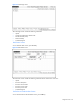
1. Connect to the management module. Refer to the “Connecting to the Service Port” section in this chapter.
2. Configure the terminal settings. Refer to the “Configuring Terminal Settings” section in this chapter.
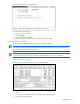
3. Observe the screen:
a. If the management module and enclosure are already powered on, you may need to refresh the screen. To
refresh the screen, press the Enter key or the space bar.
NOTE: When accessing the infrastructure diagnostics on a powered module, the screen may be blank or it
may display information from the previous diagnostic cycle. Refresh the screen to see current data.
b. If the management module and enclosure are not powered on, apply power to the enclosure. When the
startup screen appears, listing the firmware version and a
Press Enter prompt, press the Enter key.
Usage Guidelines
Observe the following guidelines for using diagnostics:
• Be sure the hardware connections and terminal configuration settings are complete before accessing the
diagnostics.
• For screen captures, use terminal software that contains a file capture feature or for screen captures using
Windows, press the Shift + Print Scrn keys and paste from the clipboard into a document.
Navigation Guidelines
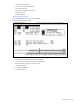
• Use the hotkeys listed in the Command Legend at the bottom of the screen to navigate the diagnostics.
• Press the M key to return to the main screen from any other screen.
• Press the H key to view the help screen from any other screen.