
XenServer Virtual Machine Installation 4.1.0

Installing Windows VMs
12
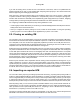
4. In the Remote Desktop section of this dialog box, check the checkbox labeled Allow users to connect
remotely to this computer (Windows XP) or Enable Remote Desktop on this computer (Windows 2003
Server).
5. If you want to select any non-administrator users that can connect to this Windows VM, click the Select
Remote Users... button and provide the usernames. (Users with Administrator privileges on the Win-
dows domain can connect by default.)
3.4. Preparing to clone a Windows VM
You need to use the Windows utility sysprep to prepare a Windows VM for cloning. This is the only supported
way to properly clone a Windows VM.
Computers running Windows operating systems use a Security ID (SID) to uniquely identify themselves.
When cloning a Windows VM, it is important to take steps to ensure the uniqueness of these Security IDs.
Cloning an installation without taking the recommended system preparation steps can lead to duplicate SIDs
and other problems. Because the SID identifies the computer or domain as well as the user, it is critical that
it is unique. Refer to the Microsoft KnowledgeBase article 162001, "Do not disk duplicate installed versions
of Windows," for more information.
Sysprep modifies the local computer Security ID (SID)to make it unique to each computer. The Sysprep
binaries are on the Windows product CDs in the \support\tools\deploy.cab file.
Here are the overall steps you need to follow to clone Windows VMs:
1. Create, install, and configure the Windows VM as desired.
2. Apply all relevant Service Packs and updates.
3. Install the Citrix PV drivers.
4. Install any applications and perform any other tailoring that is desired.
5. Copy the contents of \support\tools\deploy.cab from the Windows product CD to a new
\sysprep folder in the VM.
6. Run sysprep (this will shut down the VM when it completes).
7. In XenCenter, convert the VM into a template.
8. Clone the newly created template into new VMs as required.
9. When the cloned VM starts, it will get a new system ID and name, then run a mini-setup to prompt for
configuration values as necessary, and finally restart, before being available for use.
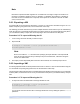
Note
The original, sysprepped VM (the "source" VM) should not be restarted again after the sysprep
stage, and should be converted to a template immediately afterwards to prevent this. If the source
VM is restarted, sysprep must be run on it again before it can be safely used to make additional
clones.
For more information on using sysprep, refer to the Microsoft TechNet page "Windows System Preparation
Tool."