
XenServer Virtual Machine Installation 4.1.0


Creating VMs
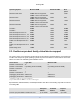
4
Enterprise
Edition
Standard
Edition
Express
Edition
Number of concurrent VMs 50 50 4
Support for VLANs yes yes no
Support for shared storage yes no no
Support for server pools yes no no
Support for additional QoS control yes no no
If you attempt to create a fifth VM with a Express Edition license, for example, an error message will appear
suggesting that you can upgrade your license. Licenses are applied per-host, and so for a resource pool
setup you must apply a Enterprise Edition license across all hosts before joining them into a pool.
If you downgrade a license on a host, it does not take any immediate action on running domains, but ensures
that the restrictions are enforced from that point onwards (e.g. if you have 5 VMs running and downgrade to
Express Edition, they will continue to run but you cannot start any more). License downgrade is disallowed
in the case of a host that is actively participating in a pool, so it must be ejected and then downgraded.
License expiry on a host also does not take any immediate action on running domains, but prevents new
domains being started. XenCenter will also regularly warn you if your hosts are approaching license expiry
thresholds, in advance of it.
2.4. Physical to Virtual Conversion (P2V)
Physical to Virtual Conversion (P2V) is the process by which an existing operating system on a physical
server — its filesystem, configuration, etc. — is cast into a virtualized instance of the same operating system
and filesystem, transferred, instantiated, and started as a VM on the XenServer Host.
For existing physical instances of Windows servers, a third-party tool is required. Windows P2V software
and documentation is available for download from the Citrix website at http://www.citrixxenserver.com/part-
ners/Pages/PartnerOffers.aspx.
For existing physical instances of Linux servers, this is accomplished by booting from the XenServer instal-
lation CD and choosing the P2V option. The filesystem is copied across the network onto a XenServer Host,
where it appears as a normal VM. We recommend that you perform P2V operations during off-peak hours
since the process involves transferring a large amount of data, which could impact other Virtual Machines
running on the XenServer Host.
The P2V tool requires a 64-bit capable CPU by default. If you have an existing Linux instance on an older
machine that you want to transfer via P2V, you can boot the CD via the p2v-legacy option at the initial
prompt. This does require at least a PAE-enabled machine, so for very old machines you can physically
move the hard drive to a PAE-enabled machine and perform the operation from there.
Procedure 2.1. To P2V an existing Linux server directly to a XenServer Host
1. Reboot the physical server that you want to convert and boot from the XenServer installation CD. If the
boot fails, start again and use the p2v-legacy option.
2. After the initial boot messages, you will see the "Welcome to XenServer" screen. (In this and the screens
that follow, use Tab or Alt+Tab to move between elements, Space to select, and F12 to move to the
next screen.)