
Compaq ProLiant ML530 Setup and Installation Guide

2-20 Compaq ProLiant ML530 Setup and Installation Guide
Compaq Confidential – Need to Know Required
Writer: Tricia Acevedo Project: Compaq ProLiant ML530 Setup and Installation Guide Comments:
Part Number: 139006-002 File Name: c-ch2 Installing Hardware.doc Last Saved On: 6/13/00 12:29 PM
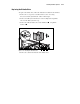
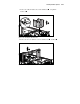
11. Reconnect cables to the back of the drive. See Chapter 5, “Cabling
Guidelines,” for more information on cabling.
NOTE: To aid in locating the proper cable connections, the cables and system board are
color coded as follows:
■ Orange = CD-ROM Drive
■ Purple = Diskette Drive
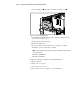
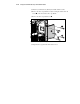
12. Replace CPU fan basket and tighten the fan basket thumbscrew.
13. Replace CPU fan.
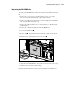
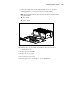
14. Replace the access panel.
15. Reconnect the power cords.
16. Power up the server. See Chapter 3, “Server Installation.”
Installing a Wide Ultra2 SCSI and
Wide Ultra3 SCSI Hard Drive Cage
These instructions cover the installation of a Wide Ultra2 SCSI and Wide
Ultra3 SCSI hard drive cage. See Chapter 5, “Cabling Guidelines,” for more
configuring information.
IMPORTANT: When adding a drive cage, it is necessary to have a second power supply
installed.
IMPORTANT: To access or install a drive cage, use the server shutdown procedure
discussed early in this chapter.
NOTE: If you have a ProLiant ML530 tower model, unlock the server and open the front
bezel fully. If you have a ProLiant ML530 rack model, remove the rack bezel.
1. Remove the access panel, as described earlier in this chapter.
2. Remove hot-plug system fans.