
FW 07.00.00/HAFM SW 08.06.00 McDATA Intrepid 6064 Director Installation and Service Manual (620-000108-920, April 2005)


2
Task 10: Back Up Configuration Data
2-79
Installation Tasks
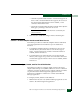
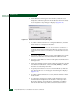
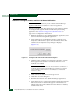
Figure 2-62 InCD Icon (Unformatted CD)
b. Right-click the icon and select Format (F). The InCD wizard
window displays.
c. Click Next. Use the defaults at each window, and click Next,
then Finish, to complete the CD formatting.
d. When the CD is formatted, the red down arrow associated
with the InCD icon changes to a green up arrow.
2. Back up the director configuration file to the management server
(Managing Configuration Data on page 4-75).
3. If the Hardware View is open, close the view and return to the
SAN management application (SANavigator or EFCM) by
clicking close (X) at the upper right corner of the window.
4. Close the SAN management application by selecting Shutdown
from the SAN menu. An EFCM or SANavigator dialog box
displays.
5. Click Yes to close the SAN management application.
6. Reboot the management server to cause directory contents to be
written to the blank CD:
a. At the Windows 2000 desktop, click Start at the left side of the
task bar (bottom of the desktop), then select Shut Down. The
Shut Down Windows dialog box displays.
b. Select the Restart option from the list box and click OK. The
management server powers down and restarts. During the
reboot, the LAN connection between the management server
and PC drops momentarily, and the TightVNC viewer
displays a network error.
c. After the management server reboots, click Login again. The
VNC Authentication screen displays.
d. Type the default password and click OK. The Welcome to
Windows dialog box displays.