
FW 07.00.00/HAFM SW 08.06.00 McDATA Intrepid 6064 Director Installation and Service Manual (620-000108-920, April 2005)

2
2-102
Intrepid® 6064 Director Installation and Service Manual
Installation Tasks
Switch Binding functionality enables you to identify the devices with
which the switch or director can communicate. Switch Binding is
available only if the SANtegrity Binding feature is installed.
The Switch Binding tab view allows you to enable the product to
communicate only with devices that are listed on the Switch Binding
Membership List (SBML). Switch Binding restricts connections to
only the devices listed on the SBML and allows no other devices to
communicate with the switch. When an unauthorized WWN
attempts to log in, it is denied a connection and an event is posted to
the event log. This provides security in environments that include a
large number of devices by ensuring that only the specified set of
devices are able to attach to a switch or director.
You can use the Switch Binding tab to enable Switch Binding and to
create and change the SBML.
For Switch Binding to function, specific operating parameters and
optional features must be enabled. Also, there are specific
requirements for disabling these parameters and features:
• Switch Binding can be enabled or disabled whether the product is
offline or online.
• Enabling Enterprise Fabric Mode automatically enables Switch
Binding.
• You cannot disable Switch Binding if Enterprise Fabric Mode is
enabled. However, if Enterprise Fabric Mode is disabled, you can
disable Switch Binding.
• If Enterprise Fabric Mode is enabled and the director or switch is
online, you cannot disable Switch Binding.
• If Enterprise Fabric Mode is enabled and the director or switch is
offline you can disable Switch Binding, but this also disables
Enterprise Fabric Mode.
• WWNs can be added to the SBML without regard to whether
Switch Binding is enabled or disabled.
• If the director or switch is online and Switch Binding is not
enabled, all nodes and switches attached to the director or switch
are automatically added to the SBML.
To configure switch binding:
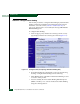
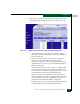
1. At the Configure panel, click the Switch Binding tab. The Security
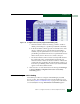
page displays with the Switch Binding tab selected (Figure 2-77).