
FW 07.00.00/HAFM SW 08.06.00 McDATA Intrepid 6064 Director Installation and Service Manual (620-000108-920, April 2005)

2
2-104
Intrepid® 6064 Director Installation and Service Manual
Installation Tasks
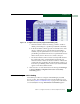
3. Click Submit. A confirmation dialog box appears. Click OK to
close the confirmation dialog box, activate the selected connection
policy, and change the switch binding state.
NOTE: The Disable Switch Binding selection cannot be activated while
Enterprise Fabric Mode is enabled and the director is online.
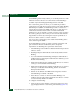
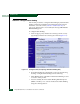
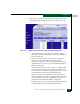
4. The Attached Nodes drop-down list contains the world wide
names of attached Fibre Channel devices. To add a member (node
or device) to the switch binding membership list displayed at the
bottom of the page, perform one of the following:
• Select a WWN from the Attached Nodes drop-down list and
click the adjacent Add Member button.
• Type a new WWN in the Detached Node (WWN) field and click
the adjacent Add Member button.
5. To delete a device from the switch binding membership list, click
the Delete button adjacent to the device WWN. A confirmation
dialog box appears. Click OK to close the dialog box and delete
the device.
Configuring the
Switch Binding
Membership List
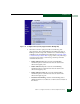
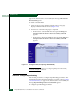
The SBML contains the WWNs of devices that are allowed to
communicate with the switch when Switch Binding is enabled. This
list is configured using the Switch Binding tab.
The contents of the SBML are shown at the bottom of the tab, listed
by WWN. The tab can show up to 64 list members. If the list contains
more than 64 members, the other list members are shown on
subsequent pages. To see the next page of list members, click the
Display More Members option. To see the previous page of list
members, click the Display Previous Members option. The message All
Members Displayed appears on the last page of entries.
Adding a List Member To add a new member to the SBML, perform the following procedure:
1. Select Configure from the navigation panel.
2. Select the Security tab and the Switch Binding tab.
3. Add the node to the list in one of the following ways:
• Select an attached node from the Attached Node WWN drop
down list.