
FW 07.00.00/HAFM SW 08.06.00 McDATA Intrepid 6064 Director Installation and Service Manual (620-000108-920, April 2005)

4
Obtaining Port Diagnostic Information
4-13
Repair Information
Each log contains a link that brings the user to a page of ASCII text
that reflects the log information present on the machine at that
moment. The log displayed is a snapshot of the current log
information. Log entries are displayed in the order in which they
occurred, with most recent entries listed first. Each log also contains a
Clear Log button that is used to clear all the entries in the log.
The Logs page provides a Clear Log button for each log. Click the
button to delete all entries for the associated log. The Logs page also
provides a Clear All Logs button. Click the button to delete all entries
in all logs.
Obtaining Port Diagnostic Information
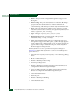
Fibre Channel port diagnostic information can be obtained by:
• Inspecting port LEDs at the port card faceplates or emulated port
LEDs at the management server Hardware View.
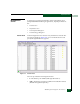
• Inspecting parameters at the management server (Intrepid 6064
Element Manager application).
• Inspecting parameters at the SANpilot interface.
Port LEDs
To obtain port operational information, inspect port LEDs at the
director port card faceplate or the emulated port LEDs at the
management server Hardware View. These port operational states are
defined in Table 4-2.
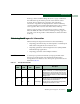
Table 4-2 Port Operational States
Port
State
Green
LED
Amber
LED
Alert
Symbol
Description
Online On Off None An attached device is connected to the director and
ready to communicate, or is communicating with other
attached devices. If the port remains online, the green
port LED remains illuminated. At the director port card,
the green LED blinks when there is Fibre Channel traffic
through the port.
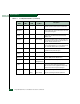
Offline Off
Off
Off
Off
None
Yellow Triangle
The director port is blocked and transmitting the offline
sequence (OLS) to the attached device.
The director port is unblocked and receiving the OLS,
indicating the attached device is offline.