
FW 07.00.00/HAFM SW 08.06.00 McDATA Intrepid 6064 Director Installation and Service Manual (620-000108-920, April 2005)


4
Blocking and Unblocking Ports
4-47
Repair Information
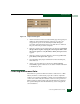
Figure 4-26 Blocking Port Warning Box
7. Click OK. The following occur to indicate the port is blocked and
offline:
— The emulated green LED associated with the port extinguishes
at the Hardware View.
— The green LED associated with the port extinguishes at the
director.
— A check mark displays in the check box adjacent to the Block
Port menu option.
Block a Port Card
(Management
Server)
To block all ports on a director port card from the management server
(Intrepid 6064 Element Manager application):
1. Notify the customer the port card will be blocked. Ensure the
customer system administrator quiesces Fibre Channel frame
traffic through the ports and sets attached devices offline.
2. At the management server, open the SAN management
application (SANavigator or EFCM).
3. At the SAN management application physical map, right-click
the product icon representing the director for which the port is to
be blocked, then select Element Manager from the pop-up menu.
The application opens.
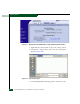
4. Click the Hardware tab. The Hardware View for the selected
director displays.
5. Move the cursor over the port card to be blocked and right-click
the mouse to open a list of menu options.
6. Select the Block All Ports menu option. A Warning dialog box
displays.