
HSG80 ACS Solution Software V8.6 for Compaq OpenVMS Installation and Configuration Guide

4–6 HSG80 ACS Solution Software Version 8.6 for Compaq OpenVMS Installation and Configuration Guide
Installing and Configuring the Agent
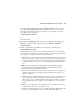
All Agent installations on OpenVMS must be done locally. Do not attempt to install the
Agent over the network. Install the software on a system that is connected to the controller.
For the following examples, you can replace DKB600 and DKB100:[SWCC] with others more
suitable for your system.
1. Insert the CD-ROM into the system that is connected to the controller.
For the examples in this section, assume the CD-ROM device is DKB600.
2. To mount the CD-ROM, enter the following at the command prompt (Replace
DKB600 with the name of your CD-ROM device.):
$ MOUNT/OVER=ID/MEDIA=CD DKB600:
3. To create a local directory on your system, enter the following at the command prompt.
Later in this procedure, you will copy the installation file from the CD-ROM to this
new directory. Replace DKB100 with the name of your hard drive on the system that is
connected to the controller.
$ CREATE/DIRECTORY DKB100:[SWCC]
A directory named DKB100:[SWCC] has been created.
4. To set the default directory, enter the following at the command prompt (Replace
DKB100 with the name of your hard drive.):
$ SET DEFAULT DKB100:[SWCC]
5. Copy the self-extracting file from the CD-ROM to the default directory. Enter the
following command (Replace DKB600 with the name of your CD-ROM drive):
$ COPY DKB600:[SWCC.AGENTS.VMS]SWCC24.EXE *.*
6. To expand the self-extracting file, enter the following:
$ RUN SSWCC24.EXE
7. To install the kit, enter the following at the command prompt:
$ PRODUCT INSTALL SWCC/SOURCE=[ ]
The system responds with a message that SWCC is the product selected to install. You
are asked if you want to continue.
8. Press Enter to continue. An installation verification message appears. The last line of
the message is the following:
To configure SWCC Agent for HS* controllers: @sys$manager:swcc_config