
HyperFabric Administrator's Guide (HP-UX 11i v1)

Troubleshooting HyperFabric
LED Colors and Their Meanings
Chapter 6160
— An adapter is installed in a slot in the HP 9000, but the cable is
attached incorrectly or no cable is attached at all.
— The adapter is bad.
— The cable is bad.
— The switch port is bad (if the adapter is connected to a switch).
Note that if a switch port is bad, and (for some reason) you
cannot use a different port on the switch, you must replace (1)
the entire HF1 switch, or (2) replace the switch module in the
HF2 switch (whichever is applicable). However, you first should
try turning the switch’s power off and then back on.
— The adapter is connected to a non-operational adapter in the
remote node (in a node-to-node configuration).
✓ If the connection from the adapter to the corresponding switch port
(if a switch is used) or the corresponding adapter in the remote node
(in a node-to-node configuration) is operational, the
“Connected/Traffic”, “Link” or “Link Connected/Traffic” LED on the
adapter shows as solid green.
✓ If data is flowing between the adapter and the switch port (if a switch
is used) or the corresponding adapter in the remote node (in a
node-to-node configuration), the “Connected/Traffic”, “Link” or “Link
Connected/Traffic” LED shows as flashing green. Note that data does
not start to flow until HyperFabric initialization has occurred (see
“Using the clic_init Command” on page 95).
✓ If the adapter is in an error state that requires it to be replaced, the
“Error” LED on the adapter shows as solid yellow. See “Replacing a
HyperFabric Adapter” on page 176 if you need to replace an adapter.
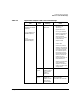
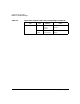
Table 6-2 below summarizes the adapter LED information in a table
format.