
HyperFabric Administrator's Guide (HP-UX 11i v1)


Troubleshooting HyperFabric
Determining Whether a Switch is Faulty
Chapter 6174
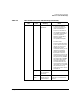
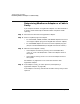
Step 2. Check the switch’s power:
a. If the power to the switch is on, the “Power A” and “Power B” LEDs
both show as solid green.
b. If only one of the “Power” LEDs shows as solid green, the switch is
still operational. However, the integrated Ethernet management LAN
adapter card should be replaced soon. (Remember, it can be replaced
by qualified HP personnel only.)
c. If both “Power” LEDs are off, the enclosure (the power supply,
backplane, and fan-monitoring board) must be replaced by qualified
HP personnel only.
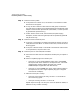
Step 3. Check the switch’s Ethernet ports:
a. If the port is connected to an operational Ethernet network, the port’s
LED (“Ethernet Port Main” or “Ethernet Port Aux”) shows as solid or
blinking green.
b. If the port is disconnected, or connected to an Ethernet network that
is not operational, the port’s LED is off.
Step 4. Check the ports on the cards/switch module:
a. Disconnect the cable from the card/switch module port you suspect is
faulty.
b. Attach a loopback plug to the relevant port:
• If the port is on the integrated 8-port fiber card or the A6388A
HF2 8-port fiber switch module in the expansion slot, use a fiber
loopback plug. (A fiber loopback plug [HP part number
A6384-67004] is shipped with each HF2 switch).
• If the port is on the A6389A HF2 4-port copper switch module in
the expansion slot, use a copper loopback plug (one is shipped
with each HF1 adapter).
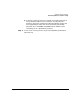
c. Determine if the port is faulty:
• If the port is functioning correctly, the “Port x” LED shows as
solid or blinking green.
• If the port is faulty, the “Port x” LED is off.
Repeat steps a through c for each port on the cards/switch module, to
determine if any of them are faulty.