
HyperFabric Administrator's Guide (HP-UX 11i v1)

Installing HyperFabric
Installing HyperFabric Switches
Chapter 3 69
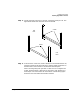
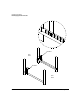
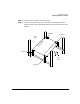
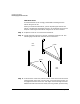
Step 4. From the back of the rack, slide the switch—with the front of the switch
facing the front of the rack—into the rack, on the rails. Move it until it is
touching brackets 1 and 2. Note that you might not have enough
clearance between the switch and the rail screws, so that you cannot
easily slide the switch. If so, try lifting the switch over the rail screws. If
you cannot do this, remove the rail screws, slide the switch into position,
and put the rail screws back in. The figure below shows the rack with the
switch in this position.
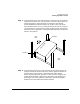
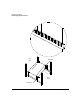
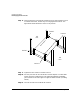
Step 5. From the back of the rack, install a bracket on the outside of each rail,
using two screws per bracket. Be sure to use the upper screw holes on
each bracket. Put the screws in the seventh and eighth square
holes—counting away from yourself—in each rail. Do not tighten the
screws. These brackets—referred to as “bracket 3” and “bracket 4” in
these steps—will secure the back of the switch. The following figure
shows the rack with these two brackets installed.
bracket 1
bracket 2
front
back
rack
rack
f
r
o
n
t
o
f
s
w
i
t
c
h