
HyperFabric Administrator's Guide (HP-UX 11i v1)

Installing HyperFabric
Installing HyperFabric Switches
Chapter 3 73
Step 12. Plug the switch’s power cord into the rack’s power distribution unit
(PDU), if it has one. Alternatively, you can plug a power cord that is
compatible with your country’s requirements into a power strip or outlet
that you want to use for the switch. (In this case, you are responsible for
obtaining a compatible power cord.)
Step 13. Power on the HF1 switch by plugging the power cord into the AC inlet on
the back of the switch. (There is no power switch.) Once the power is on,
the “Power” LED shows solid green.
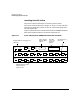
Step 14. Check that, for each HF1 switch port that is connected to an HF1
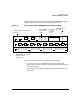
adapter, the LED on the port shows as solid green (see Figure 3-2 on
page 66). This means the connection is operational.
Step 15. Check that the “Ethernet” LED on the switch’s Ethernet port is showing
solid green (connected) or flashing green (Ethernet traffic is flowing to
the switch). See Figure 3-2 on page 66, for the location of the LED.
For more information about the switch’s LEDs, see “HF1 Switch LEDs”
on page 163.
Step 16. If you want to install another HF1 switch, go back to step 1.
Otherwise, go to step 17.
Step 17. If you want to install one or more HF2 switches, go to the next section,
“Installing the HF2 Switch”.
Otherwise, go to Chapter 4, “Configuring HyperFabric,” on page 83.