
AB291A Fabric Clustering System Support Guide (12-port Switch), April 2004
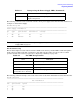
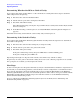
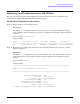
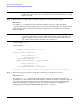

Table Of Contents
- About This Document
- 1 Introduction to Technology
- 2 Hardware Overview
- 3 Installation Planning
- 4 Installing HP Fabric Clustering System
- 5 Administration and Management
- HP-UX Host Administration and Management
- Switch Administration and Management
- CLI Overview
- Using the CLI
- Advanced Switch Setup
- Configuration, Image, and Log Files
- Configuration, Image, and Log File Overview
- File Management
- Listing Configuration, Image, and Log Files
- Viewing Configuration Files
- Viewing Log Files
- Saving Configuration Files
- Saving for System Reboot
- Saving the Backup Configuration
- Specifying the Configuration to Use at
- Saving and Copying Files
- Downloading Files to the System
- Deleting Configuration, Image, and Log Files
- Managing Log Files
- Understanding the Log Format
- Uploading Log Files
- Administering the System
- 6 Monitoring and Troubleshooting
- A Specifications
- B HP 12-Port 4X Fabric Copper Switch Commands
- Show Commands
- show arp ethernet
- show arp IB
- show authentication
- show backplane
- show boot-config
- show card
- show card-inventory
- show clock
- show config
- show fan
- show host
- show ib
- show ib sm configuration
- show ib sm multicast
- show ib sm neighbor
- show ib sm node subnet-prefix
- show ib sm partition
- show ib sm port
- show ib sm service
- show ib sm switch
- show ib-agent channel-adapter
- show ib-agent summary
- show ib-agent switch
- show ib-agent switch linear-frd-info
- show ib-agent switch all mcast-info lid
- show ib-agent switch all node-info
- show ib-agent switch all pkey-info
- show ib-agent switch port-info
- show ib-agent switch sl-vl-map
- show ib-agent switch switch-info
- show interface ib
- show interface ib sm
- show interface ib sm statistics
- show interface mgmt-ethernet
- show interface mgmt-ib
- show interface mgmt-serial
- show ip
- show location
- show logging
- show ntp
- show power-supply
- show running-status
- show sensor
- show snmp
- show system-services
- show terminal
- show trace
- show user
- show version
- IP Commands
- HP Fabric Clustering System Commands
- Administrative Commands
- action
- boot-config
- broadcast
- card
- clock
- configure
- copy
- delete
- dir
- disable
- enable
- exec
- exit
- ftp-server enable
- gateway
- help
- history
- hostname
- install
- interface
- interface mgmt-ethernet
- interface mgmt-ib
- ip
- location
- login
- logging
- logout
- more
- ntp
- ping
- radius-server
- reload
- shutdown
- snmp-server
- telnet
- terminal length
- terminal time-out
- trace
- type
- username
- who
- write
- Show Commands
- C How to Use Windows HyperTerminal
- Glossary
Chapter 6
Monitoring and Troubleshooting
Diagnosing Problems
104
HP Fabric Clustering System Switch System Status
On the front of the HP Fabric Clustering System Switch are LEDs that indicate system, fan, and power
status.
System status LED is on the front left side of the switch, and is duplicated on the back of the switch on the
right side (facing the rear).
The system status LED indicates overall system health. It indicates the overall system status for power, fans,
temperature, and electronics. Check this LED first in the event of a suspected system fault.
The following command can be used on the switch to obtain System Status information from the CLI.
HP-IB# show sensor
============================================================================
Sensor Information
============================================================================
sensor oper-status temperature(c)
---------------------------------------------------------------------------
1/1 up 42
12/1 up 36
HP-IB#
Power Supply Troubleshooting
Both power supply modules connect internally to the same power bus. If one power supply module fails, the
other immediately takes over. A power supply module may be hot-swapped without any disruption in power.
Check the status indicators of both power supply modules. Power Supply 1 is against the side of the switch,
and Power Supply 2 is between Power Supply and the Fan module.
Power supply status LEDs are on the front located in the middle of each power supply, and are visible through
the mesh of the bezel. If a power supply needs to be replaced, see “Replacing a Power Supply Module” on
page 124.
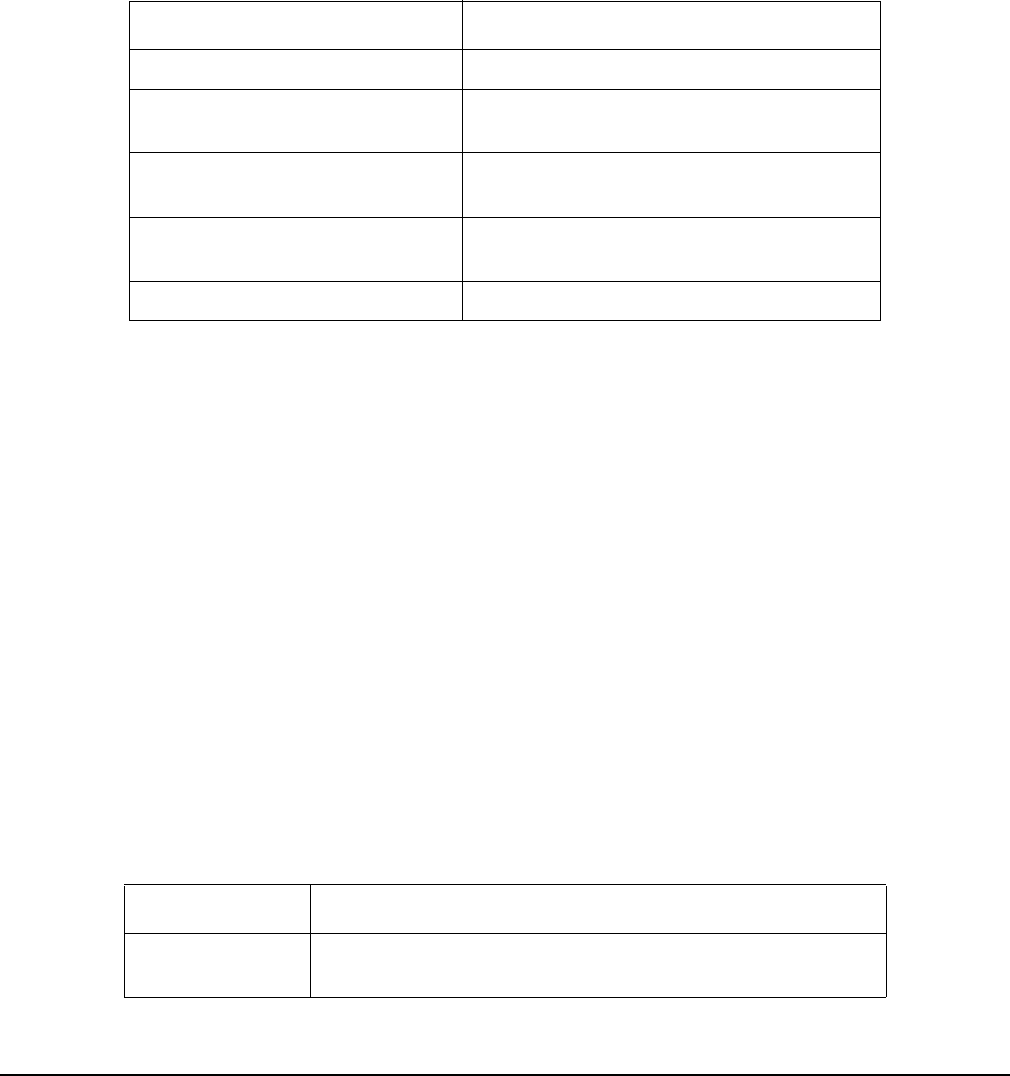
Table 6-2 Interpreting the System Status LEDs
Color Description
solid green System running with no detected errors.
blinking green (1/2sec. interval) System is initializing after application of
power or system reset.
slow blink, alternating
green/yellow (4 sec. interval)
LED test following application of power
(16 seconds).
solid yellow System error detected. Power, fans, or
electronics may be at fault.
off No system power or LED failure.
Table 6-3 Interpreting the Power Supply LEDs
color description
green (DC OK) On (green) indicates DC outputs from power supply within
regulated limits. Off indicates DC output out of location.