
AB291A Fabric Clustering System Support Guide (12-port Switch), April 2004
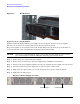

Table Of Contents
- About This Document
- 1 Introduction to Technology
- 2 Hardware Overview
- 3 Installation Planning
- 4 Installing HP Fabric Clustering System
- 5 Administration and Management
- HP-UX Host Administration and Management
- Switch Administration and Management
- CLI Overview
- Using the CLI
- Advanced Switch Setup
- Configuration, Image, and Log Files
- Configuration, Image, and Log File Overview
- File Management
- Listing Configuration, Image, and Log Files
- Viewing Configuration Files
- Viewing Log Files
- Saving Configuration Files
- Saving for System Reboot
- Saving the Backup Configuration
- Specifying the Configuration to Use at
- Saving and Copying Files
- Downloading Files to the System
- Deleting Configuration, Image, and Log Files
- Managing Log Files
- Understanding the Log Format
- Uploading Log Files
- Administering the System
- 6 Monitoring and Troubleshooting
- A Specifications
- B HP 12-Port 4X Fabric Copper Switch Commands
- Show Commands
- show arp ethernet
- show arp IB
- show authentication
- show backplane
- show boot-config
- show card
- show card-inventory
- show clock
- show config
- show fan
- show host
- show ib
- show ib sm configuration
- show ib sm multicast
- show ib sm neighbor
- show ib sm node subnet-prefix
- show ib sm partition
- show ib sm port
- show ib sm service
- show ib sm switch
- show ib-agent channel-adapter
- show ib-agent summary
- show ib-agent switch
- show ib-agent switch linear-frd-info
- show ib-agent switch all mcast-info lid
- show ib-agent switch all node-info
- show ib-agent switch all pkey-info
- show ib-agent switch port-info
- show ib-agent switch sl-vl-map
- show ib-agent switch switch-info
- show interface ib
- show interface ib sm
- show interface ib sm statistics
- show interface mgmt-ethernet
- show interface mgmt-ib
- show interface mgmt-serial
- show ip
- show location
- show logging
- show ntp
- show power-supply
- show running-status
- show sensor
- show snmp
- show system-services
- show terminal
- show trace
- show user
- show version
- IP Commands
- HP Fabric Clustering System Commands
- Administrative Commands
- action
- boot-config
- broadcast
- card
- clock
- configure
- copy
- delete
- dir
- disable
- enable
- exec
- exit
- ftp-server enable
- gateway
- help
- history
- hostname
- install
- interface
- interface mgmt-ethernet
- interface mgmt-ib
- ip
- location
- login
- logging
- logout
- more
- ntp
- ping
- radius-server
- reload
- shutdown
- snmp-server
- telnet
- terminal length
- terminal time-out
- trace
- type
- username
- who
- write
- Show Commands
- C How to Use Windows HyperTerminal
- Glossary

Chapter 6
Monitoring and Troubleshooting
Monitoring and Troubleshooting the Switch
123
Step 3. Set the application value, the module value, the trace level, the flowmask, and the card number on
which you want to run a trace.
Refer to “About Logging and Tracing” on page 120.
HP-IB(config)# trace app 4 module 36 level very-verbose
flowmask 0x12 card 2
Disabling Tracing Tracing is disabled by default. To set a trace level for the purpose of debugging or
troubleshooting, perform the following steps:
Step 1. Enter global-configuration mode.
HP-IB> enable
HP-IB configure
HP-IB(config)
Step 2. Set the application value, the module value, the trace level, the flowmask, and the card number on
which you want to run a trace.
The trace level should be set to no display to disable tracing.
Refer to “About Logging and Tracing” on page 120.
HP-IB(config) trace app 4 module 36 level no display
flowmask 0x12 card 2
Replacing Individual Components
This chapter describes how to remove and replace the Field Replaceable Units (FRUs) in the system.
Replacing a Fan Tray
The fan module contains three fans. The system requires at least two fans to remain operational.
CAUTION In the event that more than one fans fails, or you want to hot-swap the fan tray, it must be
replaced within three minutes.
The HP Fabric Clustering System Switch fan tray is hot-swappable. You do not need to turn off power to the
chassis to replace the fan tray. Access the fan tray from the front of the HP Fabric Clustering System Switch
chassis behind the bezel.
To replace a fan tray:
Step 1. remove the bezel and unscrew the fan tray screws using a Phillips-head screwdriver.
Step 2. Pull the fan toward you until it completely disengages from the chassis, as shown below.
Step 3. Insert the replacement fan tray into the open slot until it is fully seated.
Step 4. Tighten the two captive panel screws on the front panel to secure the card to the chassis.
Step 5. Fasten the fan tray to the chassis.