
AB291A Fabric Clustering System Support Guide (12-port Switch), April 2004

Table Of Contents
- About This Document
- 1 Introduction to Technology
- 2 Hardware Overview
- 3 Installation Planning
- 4 Installing HP Fabric Clustering System
- 5 Administration and Management
- HP-UX Host Administration and Management
- Switch Administration and Management
- CLI Overview
- Using the CLI
- Advanced Switch Setup
- Configuration, Image, and Log Files
- Configuration, Image, and Log File Overview
- File Management
- Listing Configuration, Image, and Log Files
- Viewing Configuration Files
- Viewing Log Files
- Saving Configuration Files
- Saving for System Reboot
- Saving the Backup Configuration
- Specifying the Configuration to Use at
- Saving and Copying Files
- Downloading Files to the System
- Deleting Configuration, Image, and Log Files
- Managing Log Files
- Understanding the Log Format
- Uploading Log Files
- Administering the System
- 6 Monitoring and Troubleshooting
- A Specifications
- B HP 12-Port 4X Fabric Copper Switch Commands
- Show Commands
- show arp ethernet
- show arp IB
- show authentication
- show backplane
- show boot-config
- show card
- show card-inventory
- show clock
- show config
- show fan
- show host
- show ib
- show ib sm configuration
- show ib sm multicast
- show ib sm neighbor
- show ib sm node subnet-prefix
- show ib sm partition
- show ib sm port
- show ib sm service
- show ib sm switch
- show ib-agent channel-adapter
- show ib-agent summary
- show ib-agent switch
- show ib-agent switch linear-frd-info
- show ib-agent switch all mcast-info lid
- show ib-agent switch all node-info
- show ib-agent switch all pkey-info
- show ib-agent switch port-info
- show ib-agent switch sl-vl-map
- show ib-agent switch switch-info
- show interface ib
- show interface ib sm
- show interface ib sm statistics
- show interface mgmt-ethernet
- show interface mgmt-ib
- show interface mgmt-serial
- show ip
- show location
- show logging
- show ntp
- show power-supply
- show running-status
- show sensor
- show snmp
- show system-services
- show terminal
- show trace
- show user
- show version
- IP Commands
- HP Fabric Clustering System Commands
- Administrative Commands
- action
- boot-config
- broadcast
- card
- clock
- configure
- copy
- delete
- dir
- disable
- enable
- exec
- exit
- ftp-server enable
- gateway
- help
- history
- hostname
- install
- interface
- interface mgmt-ethernet
- interface mgmt-ib
- ip
- location
- login
- logging
- logout
- more
- ntp
- ping
- radius-server
- reload
- shutdown
- snmp-server
- telnet
- terminal length
- terminal time-out
- trace
- type
- username
- who
- write
- Show Commands
- C How to Use Windows HyperTerminal
- Glossary
HP 12-Port 4X Fabric Copper Switch Commands
Show Commands
Appendix B
137
Examples:
To display the configuration and status information for the card:
HP-IB> show card
================================================================================
Card Information
================================================================================
admin oper admin oper oper
slot type type status status code
--------------------------------------------------------------------------------
1 controllerIb12port4x controllerIb12port4x up up normal
2 fc2port2G fc2port2G up down booting
================================================================================
Card Boot Information
================================================================================
boot boot boot
slot stage status image
--------------------------------------------------------------------------------
1 done success Release-1.1.3hp/build020
2 exe in-progress
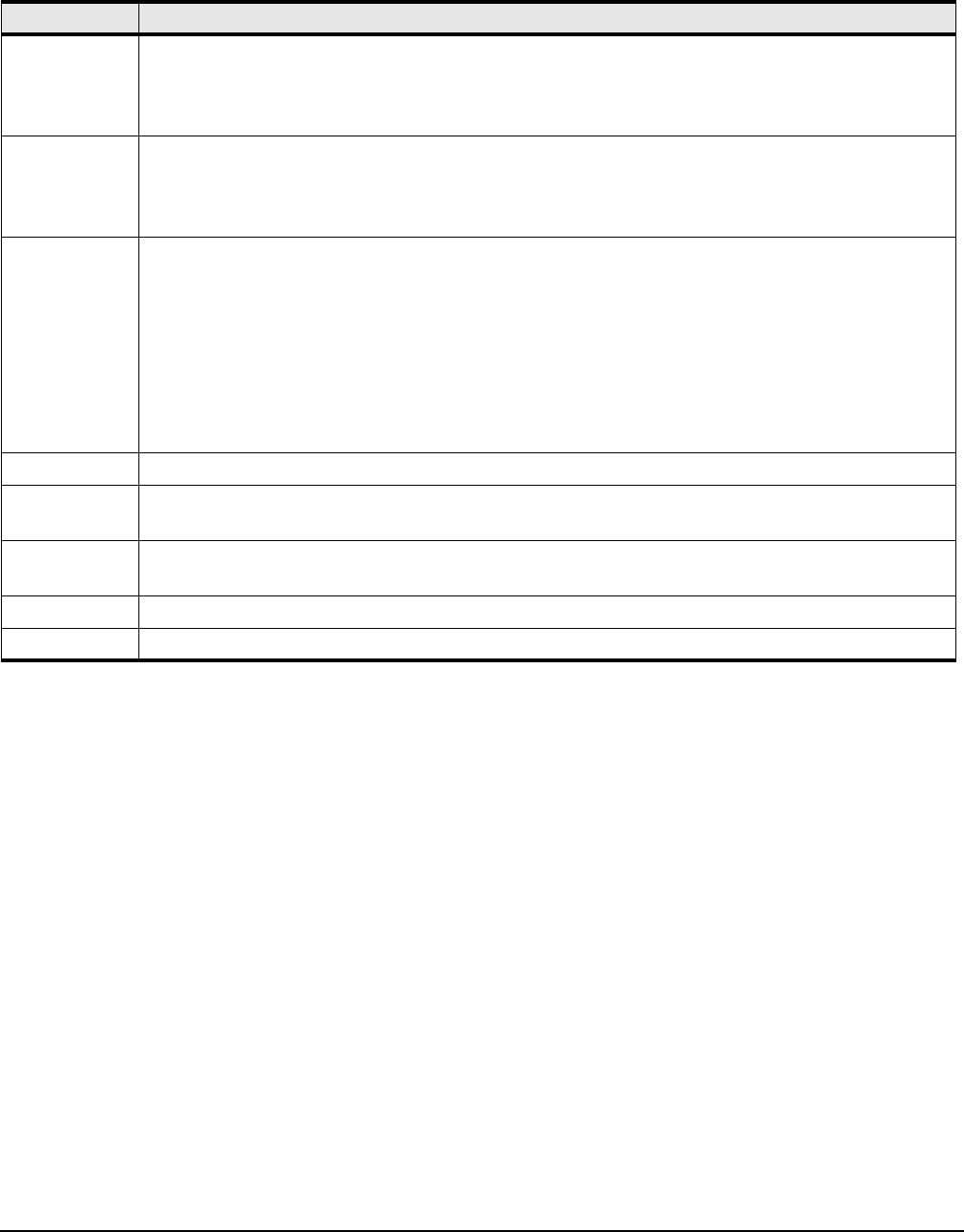
admin status Administrative status of the interface card, as specified by the administrator. When the system initializes,
all interfaces start with admin status in a down state. When a card is disabled, it is powered-off and can no
longer process packets. The value is up or down. The no shutdown command in the card configuration
mode changes the status to up. shutdown without the no keyword changes the card status to down.
oper status Operational status, as detected by the controller. This is the true status of the interface card based upon
self-detection. The value of this read-only field is unknown, up, down, or failure. up indicates the card is
ready to be configured. There may be situations when the admin status is up, but the oper status is
something else. Both admin status and oper status must be up for you to configure the card.
oper code General state of the interface card. The value is unknown, normal, wrong-image, bootFailed, tooHot, or
booting. The Operational State must be normal before the Current Card Status can switch to up. unknown
indicates an unsupported interface card - replace the card with a supported card. wrong-image indicates a
system-image on the interface card that does not match the system-image on the controller. All cards must
run the same system-image as the controller. bootFailed indicates that the system-image was incompletely
or incorrectly loaded - if the other interface cards came up successfully, reset the individual card,
otherwise, reboot the entire system chassis. tooHot indicates overheating - check that the fans are
operational and open Health->Status… to the Sensors tab and note the card temperatures. booting
indicates the card is still in the process of loading necessary image data for internal configuration.
slot Slot number the card occupies.
product serial
number
Factory-assigned product serial-number.
pca
serial-number
Printed Circuit-Assembly (PCA) serial-number.
pca number Printed Circuit-Assembly (PCA) assembly-number.
fru number Field-replaceable unit-number.
Table B-5 show card Command Field Descriptions (Continued)
Field Description