
AB291A Fabric Clustering System Support Guide (12-port Switch), April 2004
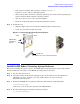
Table Of Contents
- About This Document
- 1 Introduction to Technology
- 2 Hardware Overview
- 3 Installation Planning
- 4 Installing HP Fabric Clustering System
- 5 Administration and Management
- HP-UX Host Administration and Management
- Switch Administration and Management
- CLI Overview
- Using the CLI
- Advanced Switch Setup
- Configuration, Image, and Log Files
- Configuration, Image, and Log File Overview
- File Management
- Listing Configuration, Image, and Log Files
- Viewing Configuration Files
- Viewing Log Files
- Saving Configuration Files
- Saving for System Reboot
- Saving the Backup Configuration
- Specifying the Configuration to Use at
- Saving and Copying Files
- Downloading Files to the System
- Deleting Configuration, Image, and Log Files
- Managing Log Files
- Understanding the Log Format
- Uploading Log Files
- Administering the System
- 6 Monitoring and Troubleshooting
- A Specifications
- B HP 12-Port 4X Fabric Copper Switch Commands
- Show Commands
- show arp ethernet
- show arp IB
- show authentication
- show backplane
- show boot-config
- show card
- show card-inventory
- show clock
- show config
- show fan
- show host
- show ib
- show ib sm configuration
- show ib sm multicast
- show ib sm neighbor
- show ib sm node subnet-prefix
- show ib sm partition
- show ib sm port
- show ib sm service
- show ib sm switch
- show ib-agent channel-adapter
- show ib-agent summary
- show ib-agent switch
- show ib-agent switch linear-frd-info
- show ib-agent switch all mcast-info lid
- show ib-agent switch all node-info
- show ib-agent switch all pkey-info
- show ib-agent switch port-info
- show ib-agent switch sl-vl-map
- show ib-agent switch switch-info
- show interface ib
- show interface ib sm
- show interface ib sm statistics
- show interface mgmt-ethernet
- show interface mgmt-ib
- show interface mgmt-serial
- show ip
- show location
- show logging
- show ntp
- show power-supply
- show running-status
- show sensor
- show snmp
- show system-services
- show terminal
- show trace
- show user
- show version
- IP Commands
- HP Fabric Clustering System Commands
- Administrative Commands
- action
- boot-config
- broadcast
- card
- clock
- configure
- copy
- delete
- dir
- disable
- enable
- exec
- exit
- ftp-server enable
- gateway
- help
- history
- hostname
- install
- interface
- interface mgmt-ethernet
- interface mgmt-ib
- ip
- location
- login
- logging
- logout
- more
- ntp
- ping
- radius-server
- reload
- shutdown
- snmp-server
- telnet
- terminal length
- terminal time-out
- trace
- type
- username
- who
- write
- Show Commands
- C How to Use Windows HyperTerminal
- Glossary

Installing HP Fabric Clustering System
Install HP Fabric Clustering System Adapters
Chapter 4
28
For more information about the configuration plan, please refer to the Planning the Cluster section of the
HP Fabric Clustering System Support Guide.
• Check the HP Integrity server’s documentation to determine if additional tools may be required for
component installation.
• For specific instructions on adapter installation, see system-specific documentation on “installing
networking adapters” for each type of HP Integrity server that adapters will be installed into.
• None of the On-Line Add or Replace (OL*) features are currently supported for the Fabric HCA.
• Confirm that there are cables of proper length to make connections in the fabric (adapter to adapter,
adapter to switch, or switch to switch).
• HP Fabric Clustering System software suite software media is available. It is included on CD or available
on the web through http://www.software.hp.com.
• Confirm that HP-UX super-user privileges are available; they are necessary to complete the installation.
• Confirm that the /usr/bin, /usr/sbin, /sbin, and /opt/rdma/bin directories are in your PATH by
logging in as root and using the echo $PATH command.
• Confirm that the HP-UX operating system is the correct version, HP-UX 11i v2. Use the uname -a
command to determine the HP-UX version of your system.
For more information about the required operating system versions, see HP Fabric Clustering System
Release Notes.
Information Available on the Host Channel Adapter
If you are collecting information from the adapter before installation for inventory purposes, there is a GUID
number on the card. This number can also be obtained through the HP-UX fabric utilities, but if recording
information for inventory, include the GUID number as well, as it is unique for each adapter. The GUID will
have a format such as:
00:05:ad:00:00:00:02:40
Install HP Fabric Clustering System Adapters
CAUTION Adapters contain electronic components that can easily be damaged by small amounts of
electricity. To avoid damage, follow these guidelines:
• Store adapters in their anti-static plastic bags until installation.
• Work in a static-free area, if possible.
• Handle adapters by the edges only. Do not touch electronic components or electrical traces.
• Use the disposable grounding wrist strap provided with each adapter. Follow the
instructions included with the grounding strap.
• Use a suitable ground—any exposed metal surface on the computer chassis.
Installing the Host Channel Adapter
The adapter comes pre-configured. You do not have to set any jumpers or connectors.
Step 1. Access the system card bay