
AB291A Fabric Clustering System Support Guide (12-port Switch), April 2004
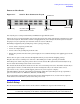

Table Of Contents
- About This Document
- 1 Introduction to Technology
- 2 Hardware Overview
- 3 Installation Planning
- 4 Installing HP Fabric Clustering System
- 5 Administration and Management
- HP-UX Host Administration and Management
- Switch Administration and Management
- CLI Overview
- Using the CLI
- Advanced Switch Setup
- Configuration, Image, and Log Files
- Configuration, Image, and Log File Overview
- File Management
- Listing Configuration, Image, and Log Files
- Viewing Configuration Files
- Viewing Log Files
- Saving Configuration Files
- Saving for System Reboot
- Saving the Backup Configuration
- Specifying the Configuration to Use at
- Saving and Copying Files
- Downloading Files to the System
- Deleting Configuration, Image, and Log Files
- Managing Log Files
- Understanding the Log Format
- Uploading Log Files
- Administering the System
- 6 Monitoring and Troubleshooting
- A Specifications
- B HP 12-Port 4X Fabric Copper Switch Commands
- Show Commands
- show arp ethernet
- show arp IB
- show authentication
- show backplane
- show boot-config
- show card
- show card-inventory
- show clock
- show config
- show fan
- show host
- show ib
- show ib sm configuration
- show ib sm multicast
- show ib sm neighbor
- show ib sm node subnet-prefix
- show ib sm partition
- show ib sm port
- show ib sm service
- show ib sm switch
- show ib-agent channel-adapter
- show ib-agent summary
- show ib-agent switch
- show ib-agent switch linear-frd-info
- show ib-agent switch all mcast-info lid
- show ib-agent switch all node-info
- show ib-agent switch all pkey-info
- show ib-agent switch port-info
- show ib-agent switch sl-vl-map
- show ib-agent switch switch-info
- show interface ib
- show interface ib sm
- show interface ib sm statistics
- show interface mgmt-ethernet
- show interface mgmt-ib
- show interface mgmt-serial
- show ip
- show location
- show logging
- show ntp
- show power-supply
- show running-status
- show sensor
- show snmp
- show system-services
- show terminal
- show trace
- show user
- show version
- IP Commands
- HP Fabric Clustering System Commands
- Administrative Commands
- action
- boot-config
- broadcast
- card
- clock
- configure
- copy
- delete
- dir
- disable
- enable
- exec
- exit
- ftp-server enable
- gateway
- help
- history
- hostname
- install
- interface
- interface mgmt-ethernet
- interface mgmt-ib
- ip
- location
- login
- logging
- logout
- more
- ntp
- ping
- radius-server
- reload
- shutdown
- snmp-server
- telnet
- terminal length
- terminal time-out
- trace
- type
- username
- who
- write
- Show Commands
- C How to Use Windows HyperTerminal
- Glossary

Installing HP Fabric Clustering System
Switch Setup
Chapter 4
36
Connect Cables to Switch
A kit for connecting a PC (or other system) to the switch for initial configuration is included with the switch,
and consists of:
• MX-9-1 DB-9 (plug) to RJ-45 adapter
• FS-10-1 DB-9 (receptacle) to RJ-45 adapter
• RJ-45 rollover cable
Attaching a Serial Console Cable
Connect a PC or terminal to the console port of the switch using a straight-through cable; use the
straight-through M/F serial cable, which is provided in the package. The serial port has a RJ-45 console
connector.
For detailed information on how to connect the serial console cable, please see the documentation included
with the serial cable kit.
Connecting to Other Devices
This section describes how to connect the system to other network devices. HP Fabric Clustering System
Switch devices can be connected to HP Fabric Clustering System servers, or other HP Fabric Clustering
System Switches.
The Fabric Copper Switch modules support the following types of connectors:
• Management ports:
• Serial console port: RJ-45 connector.
• Ethernet Management port: RJ-45 jack for unshielded twisted-pair connections.
Setting up the Switch
Configuring Basic Connectivity
To configure the system, you must first assign an IP address to a management port. This is accomplished via
the Command Line Interface (CLI). The CLI is a text-based interface that is initially accessed using a serial
console. The CLI is described in “CLI Overview” on page 59.
HP Fabric Clustering System Switch devices are not assigned an IP address prior to leaving the factory. You
need to assign an IP address using the CLI and the serial console. After you assign an IP address, you can
access the system through a Telnet or SSH session.
Configuring an Out-Of-Band Ethernet Management IP Address
To configure an out-of-band Ethernet management IP address:
Step 1. Make sure that the HP Fabric Clustering System Switch is attached to a PC or terminal via the
serial port. Refer to Appendix C, “How to Use Windows HyperTerminal,” on page 291
Step 2. Open a terminal emulation program, such as HyperTerminal for Windows, and set the session
parameters as follows:
• Baud: 9600 b/s
•Data Bits: 8