
AB291A Fabric Clustering System Support Guide (12-port Switch), April 2004


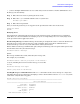
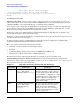
Table Of Contents
- About This Document
- 1 Introduction to Technology
- 2 Hardware Overview
- 3 Installation Planning
- 4 Installing HP Fabric Clustering System
- 5 Administration and Management
- HP-UX Host Administration and Management
- Switch Administration and Management
- CLI Overview
- Using the CLI
- Advanced Switch Setup
- Configuration, Image, and Log Files
- Configuration, Image, and Log File Overview
- File Management
- Listing Configuration, Image, and Log Files
- Viewing Configuration Files
- Viewing Log Files
- Saving Configuration Files
- Saving for System Reboot
- Saving the Backup Configuration
- Specifying the Configuration to Use at
- Saving and Copying Files
- Downloading Files to the System
- Deleting Configuration, Image, and Log Files
- Managing Log Files
- Understanding the Log Format
- Uploading Log Files
- Administering the System
- 6 Monitoring and Troubleshooting
- A Specifications
- B HP 12-Port 4X Fabric Copper Switch Commands
- Show Commands
- show arp ethernet
- show arp IB
- show authentication
- show backplane
- show boot-config
- show card
- show card-inventory
- show clock
- show config
- show fan
- show host
- show ib
- show ib sm configuration
- show ib sm multicast
- show ib sm neighbor
- show ib sm node subnet-prefix
- show ib sm partition
- show ib sm port
- show ib sm service
- show ib sm switch
- show ib-agent channel-adapter
- show ib-agent summary
- show ib-agent switch
- show ib-agent switch linear-frd-info
- show ib-agent switch all mcast-info lid
- show ib-agent switch all node-info
- show ib-agent switch all pkey-info
- show ib-agent switch port-info
- show ib-agent switch sl-vl-map
- show ib-agent switch switch-info
- show interface ib
- show interface ib sm
- show interface ib sm statistics
- show interface mgmt-ethernet
- show interface mgmt-ib
- show interface mgmt-serial
- show ip
- show location
- show logging
- show ntp
- show power-supply
- show running-status
- show sensor
- show snmp
- show system-services
- show terminal
- show trace
- show user
- show version
- IP Commands
- HP Fabric Clustering System Commands
- Administrative Commands
- action
- boot-config
- broadcast
- card
- clock
- configure
- copy
- delete
- dir
- disable
- enable
- exec
- exit
- ftp-server enable
- gateway
- help
- history
- hostname
- install
- interface
- interface mgmt-ethernet
- interface mgmt-ib
- ip
- location
- login
- logging
- logout
- more
- ntp
- ping
- radius-server
- reload
- shutdown
- snmp-server
- telnet
- terminal length
- terminal time-out
- trace
- type
- username
- who
- write
- Show Commands
- C How to Use Windows HyperTerminal
- Glossary
Chapter 5
Administration and Management
Switch Administration and Management
82
Saving and Copying Files
HP Fabric Clustering System Switch OS allows administrators to save files to and from the system, as well as
between files, using the CLI copy command. You may download and install image and configuration files
from an FTP server to the system chassis.
Download image files to upgrade switch system firmware and download configuration files to quickly
replicate a desired configuration. Upload configuration and log files to maintain backups and troubleshoot the
system.
Files are copied across the network using the File Transfer Protocol (FTP). As such, part of the copy command
requires you to include your network user name and password, as well as the host DNS name or IP address.
Download and Upload Capabilities Image files: Download only. No upload.
Config files: Download and upload
Log files: Upload only
The copy Command The copy command may be executed in the privileged-execute mode only.
The syntax for copying a remote file to the local system is:
copy ftp://usr:passwd@host/loc fs:file
or
for copying a local file to a remote host,
copy fs:file ftp://usr:passwd@host/loc
The arguments to the copy command are described below.
Table 5-6 Copy Command Descriptions
argument description
usr Network user name for executing the FTP command on the specified
host
. The user name is always followed by a colon (:).
passwd Network password for executing the FTP command on the specified
host
. The password is always followed by the “at” character (@). A
password is sent as-is, without encryption, to the target host; however,
the system, and connected hosts should be protected behind a firewall.
host IP address or DNS name of the remote host system. The
host
is always followed by a slash.
loc Location of the file. The format of the path is appropriate for the host
system (e.g., forward slashes on Linux systems or back-slashes on
Windows systems). Path information may not be supported by your
FTP server. If this is the case, copy files to and from your top-level
home directory and omit any path information.