
AB291A Fabric Clustering System Support Guide (12-port Switch), April 2004
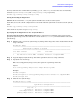

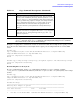
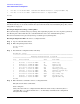
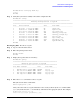
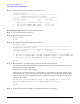

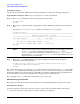
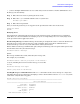
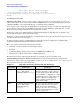
Table Of Contents
- About This Document
- 1 Introduction to Technology
- 2 Hardware Overview
- 3 Installation Planning
- 4 Installing HP Fabric Clustering System
- 5 Administration and Management
- HP-UX Host Administration and Management
- Switch Administration and Management
- CLI Overview
- Using the CLI
- Advanced Switch Setup
- Configuration, Image, and Log Files
- Configuration, Image, and Log File Overview
- File Management
- Listing Configuration, Image, and Log Files
- Viewing Configuration Files
- Viewing Log Files
- Saving Configuration Files
- Saving for System Reboot
- Saving the Backup Configuration
- Specifying the Configuration to Use at
- Saving and Copying Files
- Downloading Files to the System
- Deleting Configuration, Image, and Log Files
- Managing Log Files
- Understanding the Log Format
- Uploading Log Files
- Administering the System
- 6 Monitoring and Troubleshooting
- A Specifications
- B HP 12-Port 4X Fabric Copper Switch Commands
- Show Commands
- show arp ethernet
- show arp IB
- show authentication
- show backplane
- show boot-config
- show card
- show card-inventory
- show clock
- show config
- show fan
- show host
- show ib
- show ib sm configuration
- show ib sm multicast
- show ib sm neighbor
- show ib sm node subnet-prefix
- show ib sm partition
- show ib sm port
- show ib sm service
- show ib sm switch
- show ib-agent channel-adapter
- show ib-agent summary
- show ib-agent switch
- show ib-agent switch linear-frd-info
- show ib-agent switch all mcast-info lid
- show ib-agent switch all node-info
- show ib-agent switch all pkey-info
- show ib-agent switch port-info
- show ib-agent switch sl-vl-map
- show ib-agent switch switch-info
- show interface ib
- show interface ib sm
- show interface ib sm statistics
- show interface mgmt-ethernet
- show interface mgmt-ib
- show interface mgmt-serial
- show ip
- show location
- show logging
- show ntp
- show power-supply
- show running-status
- show sensor
- show snmp
- show system-services
- show terminal
- show trace
- show user
- show version
- IP Commands
- HP Fabric Clustering System Commands
- Administrative Commands
- action
- boot-config
- broadcast
- card
- clock
- configure
- copy
- delete
- dir
- disable
- enable
- exec
- exit
- ftp-server enable
- gateway
- help
- history
- hostname
- install
- interface
- interface mgmt-ethernet
- interface mgmt-ib
- ip
- location
- login
- logging
- logout
- more
- ntp
- ping
- radius-server
- reload
- shutdown
- snmp-server
- telnet
- terminal length
- terminal time-out
- trace
- type
- username
- who
- write
- Show Commands
- C How to Use Windows HyperTerminal
- Glossary

Chapter 5
Administration and Management
Switch Administration and Management
88
Uploading Log Files
Log files may be uploaded to an FTP server using the CLI. This section describes file upload using CLI.
Uploading Files Using the CLI To copy a local log file to a remote network host:
Step 1. Enter enable command to change to the privileged-execute mode.
HP-IB> enable
HP-IB#
Step 2. Enter the dir command with the appropriate keyword to display the existing files of the desired
type.
Keywords are config, image, syslog. In this case, include the syslog keyword.
HP-IB# dir syslog
============================================================================
Existing Syslog-files on System
============================================================================
slot date-created size file-name
----------------------------------------------------------------------------
1 Tue Jan 21 19:20:09 2003 469593 ts_log
1 Tue Jan 21 11:00:03 2003 74119 ts_log.1.gz
HP-IB#
NOTE The size of the active log file is checked hourly. When it exceeds 1 MByte, the active
log file, ts_log, is closed, compressed, and renamed ts_log.1.gz. Other
ts_log.x.gz files are incremented by 1. If there is already a ts_log.7.gz file, it is
discarded and ts_log.6.gzbecomes ts_log.7.gz. It is recommended that you back
up the log files on a regular basis.
Step 3. Enter the copy command with the name of the file, FTP user-authentication, and the file
destination, in the following format:
HP-IB# copy ftp://syslog:ts_log anonymous:password 10.3.0.83:ts_log
* operation completed successfully
HP-IB#
The example above copies a file of the type syslog. This command copies the local log file, ts_log, to the FTP
server 10.3.0.83. The file is placed in the top of the user anonymous’ home directory. You may include path
information within your user home directory if the FTP server allows it. Typically, this is not permitted so it
is recommended that you upload and download files using your top-level home directory.
The arguments to the copy command are described in “copy” on page 252.
Administering the System
This chapter provides the following required information to perform Administrative duties on the system.
Switching User Identity
One of the following scenarios may make it necessary to change your user identity during a CLI session:
• you created a new user account and you want to verify the access privileges