
AB291A Fabric Clustering System Support Guide (12-port Switch), April 2004
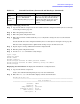
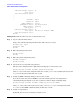

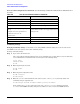
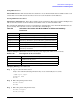
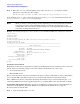
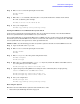


Table Of Contents
- About This Document
- 1 Introduction to Technology
- 2 Hardware Overview
- 3 Installation Planning
- 4 Installing HP Fabric Clustering System
- 5 Administration and Management
- HP-UX Host Administration and Management
- Switch Administration and Management
- CLI Overview
- Using the CLI
- Advanced Switch Setup
- Configuration, Image, and Log Files
- Configuration, Image, and Log File Overview
- File Management
- Listing Configuration, Image, and Log Files
- Viewing Configuration Files
- Viewing Log Files
- Saving Configuration Files
- Saving for System Reboot
- Saving the Backup Configuration
- Specifying the Configuration to Use at
- Saving and Copying Files
- Downloading Files to the System
- Deleting Configuration, Image, and Log Files
- Managing Log Files
- Understanding the Log Format
- Uploading Log Files
- Administering the System
- 6 Monitoring and Troubleshooting
- A Specifications
- B HP 12-Port 4X Fabric Copper Switch Commands
- Show Commands
- show arp ethernet
- show arp IB
- show authentication
- show backplane
- show boot-config
- show card
- show card-inventory
- show clock
- show config
- show fan
- show host
- show ib
- show ib sm configuration
- show ib sm multicast
- show ib sm neighbor
- show ib sm node subnet-prefix
- show ib sm partition
- show ib sm port
- show ib sm service
- show ib sm switch
- show ib-agent channel-adapter
- show ib-agent summary
- show ib-agent switch
- show ib-agent switch linear-frd-info
- show ib-agent switch all mcast-info lid
- show ib-agent switch all node-info
- show ib-agent switch all pkey-info
- show ib-agent switch port-info
- show ib-agent switch sl-vl-map
- show ib-agent switch switch-info
- show interface ib
- show interface ib sm
- show interface ib sm statistics
- show interface mgmt-ethernet
- show interface mgmt-ib
- show interface mgmt-serial
- show ip
- show location
- show logging
- show ntp
- show power-supply
- show running-status
- show sensor
- show snmp
- show system-services
- show terminal
- show trace
- show user
- show version
- IP Commands
- HP Fabric Clustering System Commands
- Administrative Commands
- action
- boot-config
- broadcast
- card
- clock
- configure
- copy
- delete
- dir
- disable
- enable
- exec
- exit
- ftp-server enable
- gateway
- help
- history
- hostname
- install
- interface
- interface mgmt-ethernet
- interface mgmt-ib
- ip
- location
- login
- logging
- logout
- more
- ntp
- ping
- radius-server
- reload
- shutdown
- snmp-server
- telnet
- terminal length
- terminal time-out
- trace
- type
- username
- who
- write
- Show Commands
- C How to Use Windows HyperTerminal
- Glossary

Chapter 5
Administration and Management
Switch Administration and Management
96
Step 4. Enter the username command with the name of the user, the privilege keyword, and the
privileges to assign this user. For example:
HP-IB(config)# username ib-admin privilege ib-rw ip-ethernet-ro fc-rw
In the example above, ib-admin is the name of the user account, privilege is a mandatory keyword, and
ib-rw, ip-ethernet-ro, and fc-rw are access privileges.
NOTE When you change a user’s privileges, all the old privileges are removed and replaced with the
new privilege(s). If the user had multiple privileges, include the other privileges on the
command line when you make the change. Privileges are order-dependent. Enter them in the
same order as shown in the table above.
Example The following example gives a user read-write access to InfiniBand and Ethernet configuration commands.
Login: super
Password: xxxx
HP-IB> enable
HP-IB# configure
HP-IB(config)# username IB_admin privilege ib-rw ip-ethernet-rw fc-ro
HP-IB(config)# exit
HP-IB# show user IB_admin
============================================================================
User Information
============================================================================
username : IB_admin
password : $1$LZHfWO6k$6LSXKZ7adbkC6/WXXBTAF/
snmp-community : IB_admin
permission-level : ib-rw, ip-ethernet-rw, fc-ro
admin-status : enabled
num-logins : 0
num-unsuccessful-logins : 0
last-login :
last-unsuccessful-login :
HP-IB#
Setting the System Clock
Maintaining accurate time is important for statistics and auditing. The system chassis provides an on-board
system clock to save the time settings across reboots. Time is maintained in one of two ways:
• An on-board system clock
• External NTP servers
Time is set at the factory, and can be manually set. To ensure accurate synchronization, it is recommended to
use an external NTP server. This enables logs to be synchronized with other management systems.
Time or NTP servers may be configured in the CLI. In the CLI, time may be set manually using the clock
command and NTP servers may be specified using the ntp command. This section describes these methods.
Setting Time Through the CLI Note: If you have an NTP server configured, it is recommended that you
use the process described in: “Setting the NTP Servers to Maintain the System Clock” on page 97.
To set the system clock in the CLI:
Step 1. Login to the CLI as the super user.