
HP Enterprise MFP, HP Managed MFP - Copying or Digitally Scanning Highlighted Images (white paper)

2
Introduction
When digitally sending or copying highlighted images or text objects, you may see that the image
appears lighter than expected or does not show up at all with certain brands/types of highlighter
pens.
This document will help to provide settings which will affect the way highlighters are scanned or
copied.
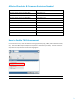
A Firmware enhancement has also been introduced for certain products to help with the
reproduction of highlighted images. (See table below)
Background
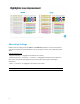
Highlighters come in bright, often fluorescent colors. Fluorescent highlighter inks tend to reflect
more light than that which is absorbed by the paper source. This reflection may cause the image to
not show up as well as non-fluorescent colors depending upon the scanner/MFP being used.
The most common color for highlighters is yellow, but many other colors are also found such
as pink, blue, green, orange, and purples. Yellow is often the preferred color to use when making a
photocopy as it tends to not produce as much of a shadow on copies or scans.
There are different color and ink properties depending upon the brand of highlighters used. Due to
these differences, scanning of the images may vary greatly from not being seen at all to changing
colors (e.g., orange highlighter may appear brown in the copy or scan or yellow highlighter may
appear green).
Automatic Color Detect
HP has a feature in all FutureSmart products which automatically detects color on each page.
Depending upon the amount of color information on a page, the scanner may determine the page to
be black and white due to a very, very small amount of color which may be considered background
artifacts. This helps to reduce the file size of sent files as well as toner usage on a copied page.
You may see small highlighted marks on pages print out in black and white or even disappear.
The black and white effect is due to the printer not seeing enough color on the page, in
which case the whole image is rendered as a black and white page.
The highlighted mark disappearing may be due to the marker characteristics not being
detected by the scanner.
Firmware Improvements for Fluorescent colors
Some FutureSmart MFPs running FS 3.5.3 or later firmware have improved color reproduction of
fluorescent highlighters when scanning documents that have been marked with fluorescent
highlighters. This improvement is applicable to both copying and digital sending.