
HP Enterprise MFP, HP Managed MFP - Copying or Digitally Scanning Highlighted Images (white paper)

6
Definitions
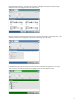
Color/Black Setting
Automatically detect: Scans or prints color documents in color and black and white documents in
black and white. For mixed documents, the product will determine whether to scan or print in color
or black and white.
Color: Scans or prints documents in color.
Black /Gray: Scans or prints documents in black and white.
Black: Scans documents in black and white with a compressed file size.
Image Adjustment Setting
Use this feature to improve the overall quality of the copy. For example, you can adjust the darkness
and sharpness, and you can us the Background Cleanup setting to remove faint images from the
background or to remove a light background color.
-- Adjust the Darkness setting to increase or decrease the amount of white and black in the colors.
-- Adjust the Contrast setting to increase or decrease the difference between the lightest and darkest
color on the page.
-- Adjust the Background Cleanup setting if you are having trouble copying a faint image.
-- Adjust the Sharpness Setting to clarify or soften the image. For example, increasing the sharpness
could make text appear crisper, but decreasing it would make photographs appear smoother.
Optimize Text/Picture Setting
Use this setting to optimize the output for a particular type of content.
Use Manually adjust to manually optimize the setting for each document.
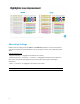
Use Text for documents that contain mostly text. Best for Highlighters
Use Printed Picture for line drawing and preprinted images such as magazine clippings or pages from
a book. If you see bands of irregular intensity on copies, try selecting printed pictures to improve
quality.
Use Photographs for photographic prints.
hp.com/go/support
Current HP driver, support, and security alerts
delivered directly to your desktop
© Copyright 2015 HP Inc.. The information contained herein is subject to change without notice. The only warranties for HP products and services
are set forth in the express warranty statements accompanying such products and services. Nothing herein should be construed as constituting
an additional warranty. HP shall not be liable for technical or editorial errors or omissions contained herein.