
HP ElitePad 1000 G2 Rugged Tablet User Guide

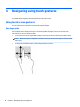

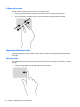

Table Of Contents
- Welcome
- Getting to know your tablet
- Connecting to a network
- Navigating using touch gestures
- Detailed functions
- Power management
- Shutting down the tablet
- Setting power options
- External cards and devices
- Security
- Maintenance
- Backup and recovery (Windows 8)
- Backup and recovery (Windows 10)
- Computer Setup (BIOS), TPM, and HP Sure Start
- HP PC Hardware Diagnostics (UEFI)
- Support
- Specifications
- Accessibility
- Traveling with the tablet
- Electrostatic discharge
- Troubleshooting
- Index

4 Navigating using touch gestures
Your tablet allows navigation using touch gestures on the touch screen.
Using touch screen gestures
You can control items on the touch screen directly with your ngers.
One-nger slide
The one-nger slide is mostly used to pan or scroll through lists and pages, but you can use it for other
interactions, too, such as moving an object.
●
To scroll across the screen, lightly slide one nger across the screen in the direction you want to move.
NOTE: When many apps are displayed on the Start screen, you can slide your nger to move the screen
left or right.
●
To drag, press and hold an object, and then drag the object to move it.
16 Chapter 4 Navigating using touch gestures