
HP ElitePad 1000 G2 Rugged Tablet User Guide

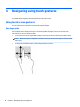

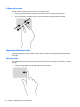
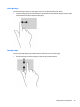

Table Of Contents
- Welcome
- Getting to know your tablet
- Connecting to a network
- Navigating using touch gestures
- Detailed functions
- Power management
- Shutting down the tablet
- Setting power options
- External cards and devices
- Security
- Maintenance
- Backup and recovery (Windows 8)
- Backup and recovery (Windows 10)
- Computer Setup (BIOS), TPM, and HP Sure Start
- HP PC Hardware Diagnostics (UEFI)
- Support
- Specifications
- Accessibility
- Traveling with the tablet
- Electrostatic discharge
- Troubleshooting
- Index

2-nger pinch zoom
2-nger pinch zoom allows you to zoom out or in on images or text.
●
Zoom in by placing two ngers together on the screen and then moving your ngers apart.
●
Zoom out by placing two ngers apart on the screen and then moving your ngers together.
Edge swipes (Windows 8 only)
Edge swipes allow you to access toolbars on your tablet for tasks such as changing settings and nding or
using apps.
Right-edge swipe
The right-edge swipe reveals the charms, which let you search, share, start apps, access devices, or change
settings.
●
Swipe your nger gently from the right edge to reveal the charms.
18 Chapter 4 Navigating using touch gestures