
HP ElitePad 1000 G2 Rugged Tablet User Guide


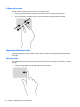
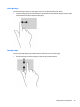

Table Of Contents
- Welcome
- Getting to know your tablet
- Connecting to a network
- Navigating using touch gestures
- Detailed functions
- Power management
- Shutting down the tablet
- Setting power options
- External cards and devices
- Security
- Maintenance
- Backup and recovery (Windows 8)
- Backup and recovery (Windows 10)
- Computer Setup (BIOS), TPM, and HP Sure Start
- HP PC Hardware Diagnostics (UEFI)
- Support
- Specifications
- Accessibility
- Traveling with the tablet
- Electrostatic discharge
- Troubleshooting
- Index

Left-edge swipe
The left-edge swipe reveals your open apps so that you can switch between them quickly.
●
Swipe your nger gently from the left edge to switch between apps. Without lifting your nger, swipe
back toward the left edge to display all open apps.
Top-edge swipe
The top-edge swipe displays app command options that allow you to customize apps.
●
Gently swipe nger from the top edge to reveal the app command options.
Using touch screen gestures 19