
HP ElitePad 1000 G2 Rugged Tablet User Guide

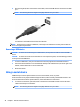
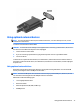
Table Of Contents
- Welcome
- Getting to know your tablet
- Connecting to a network
- Navigating using touch gestures
- Detailed functions
- Power management
- Shutting down the tablet
- Setting power options
- External cards and devices
- Security
- Maintenance
- Backup and recovery (Windows 8)
- Backup and recovery (Windows 10)
- Computer Setup (BIOS), TPM, and HP Sure Start
- HP PC Hardware Diagnostics (UEFI)
- Support
- Specifications
- Accessibility
- Traveling with the tablet
- Electrostatic discharge
- Troubleshooting
- Index

Using optional external devices
NOTE: For more information about required software and drivers, or to learn which port to use, see the
manufacturer's instructions.
To connect an external device to the tablet:
CAUTION: To reduce the risk of damage to the equipment when connecting a powered device, be sure that
the device is turned o and the AC power cord is unplugged.
1. Connect the device to the tablet.
2. If you are connecting a powered device, plug the device power cord into a grounded AC outlet.
3. Turn on the device.
To disconnect an unpowered external device, turn o the device, and then disconnect it from the tablet. To
disconnect a powered external device, turn o the device, disconnect it from the tablet, and then unplug the
AC power cord.
Using optional external drives
Removable external drives expand your options for storing and accessing information. You can add a USB
drive by connecting the drive to a USB port on the tablet.
NOTE: HP external USB optical drives should be connected only to powered USB ports; therefore, HP does
not recommend connecting HP external USB optical drives to the tablet.
USB drives include the following types:
●
1.44-megabyte diskette drive
●
Hard drive module
●
External optical drive (CD, DVD, and Blu-ray)
●
MultiBay device
Using optional external devices 37