
Operation Manual


Table Of Contents
- Printer overview
- Paper trays
- Supplies, accessories, and parts
- Manage the printer
- Solve problems
- Customer support
- Control panel help system
- Restore factory settings
- A “Cartridge is low” or “Cartridge is very low” message displays on the printer control panel
- Printer does not pick up paper or misfeeds
- Clear paper jams
- Introduction
- Jam locations
- Auto-navigation for clearing jams
- Experiencing frequent or recurring paper jams?
- Clear jams in the left door
- Clear jams in Tray 1 (multipurpose tray)
- Clear jams in Tray 2
- Clear jams in Tray 3
- Clear jams in the 3x500-sheet feeder
- Clear jams in the ink-collection unit area
- Clear jams in the output bin
- Improve print quality
- Introduction
- Print from a different software program
- Check the paper-type setting for the print job
- Check cartridge status
- Clean the printer
- Visually inspect the cartridge
- Check paper and the printing environment
- Adjust color settings (Windows)
- Print and interpret the print quality page
- Calibrate the printer to align the colors
- Try a different print driver
- Solve wired network problems
- Introduction
- Poor physical connection
- The computer is using the incorrect IP address for the printer
- The computer is unable to communicate with the printer
- The printer is using incorrect link and duplex settings for the network
- New software programs might be causing compatibility problems
- The computer or workstation might be set up incorrectly
- The printer is disabled, or other network settings are incorrect
- Solve wireless network problems
- Introduction
- Wireless connectivity checklist
- The printer does not print after the wireless configuration completes
- The printer does not print, and the computer has a third-party firewall installed
- The wireless connection does not work after moving the wireless router or printer
- Cannot connect more computers to the wireless printer
- The wireless printer loses communication when connected to a VPN
- The network does not appear in the wireless networks list
- The wireless network is not functioning
- Perform a wireless network diagnostic test
- Reduce interference on a wireless network
- Index
Printer specications
IMPORTANT: The following specications are correct at the time of publication, but they are subject to
change. For current information, see www.hp.com/support/pagewidecolor556.
●
Technical specications
●
Supported operating systems
●
Mobile printing solutions
●
Printer dimensions
●
Power consumption, electrical specications, and acoustic emissions
●
Operating-environment range
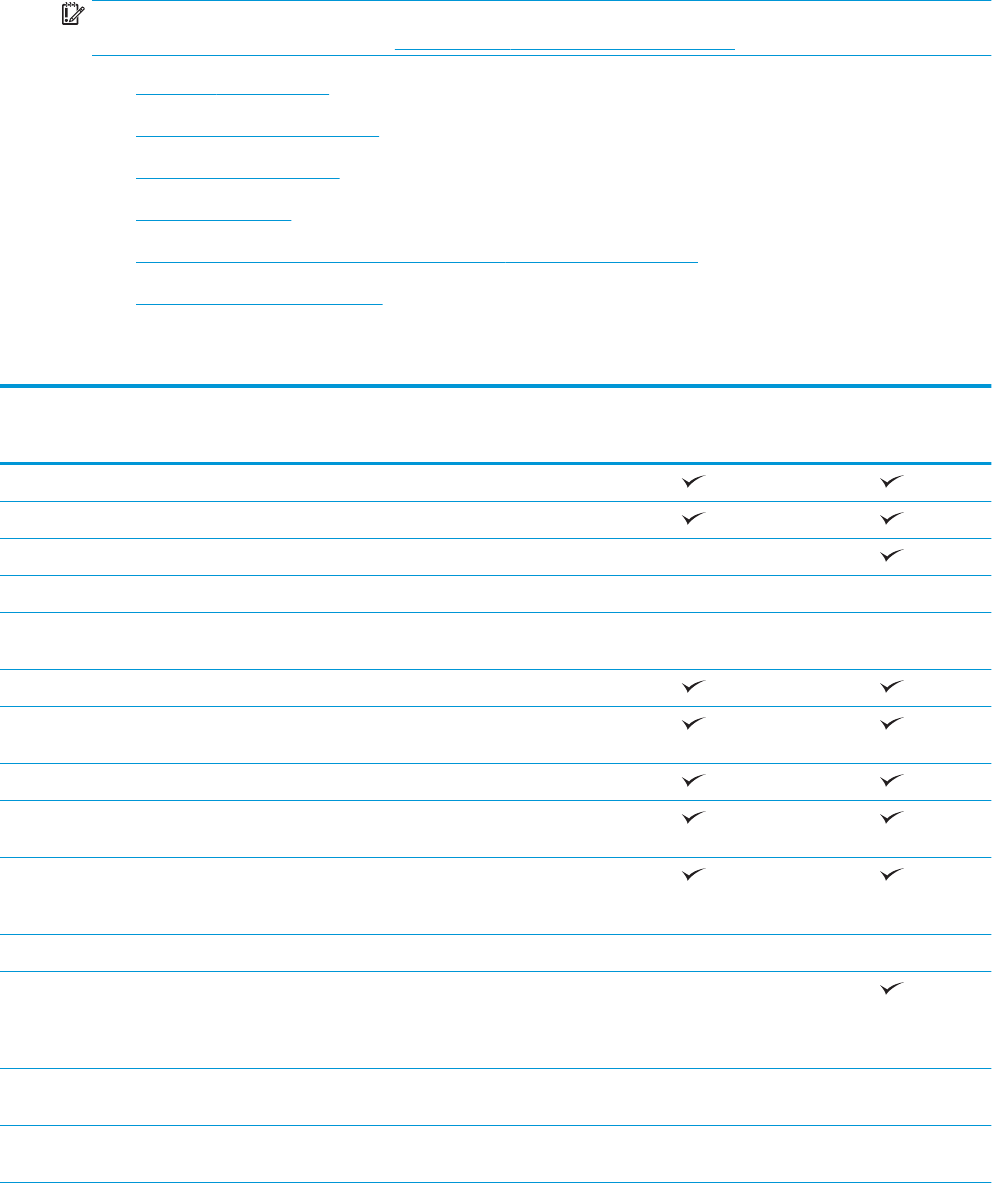
Technical specications
Model name
Product number
556dn
G1W46A
556xh
G1W47A
Paper handling Tray 1 (50-sheet capacity)
Tray 2 (500-sheet capacity)
Tray 3 (500-sheet capacity) Optional
Printer stand Optional Optional
3 x 500-sheet paper feeder and stand
(combined 1,500-sheet capacity)
Optional Optional
Automatic duplex printing
Connectivity 10/100/1000 Ethernet LAN connection
with IPv4 and IPv6
Hi-Speed USB 2.0
Easy-access USB port for printing without
a computer and upgrading the rmware
Hardware Integration Pocket for
connecting accessory and third-party
devices
HP Internal USB Ports Optional Optional
Integrated HP near-eld communication
(NFC) and Wireless Direct Print
functionality for printing from mobile
devices
Optional
HP Jetdirect 3000w NFC/Wireless
Accessory for printing from mobile devices
Optional Optional
HP Jetdirect 2900nw Print Server
accessory for wireless connectivity
Optional Optional
ENWW Printer specications 7