
Operation Manual


Table Of Contents
- Printer overview
- Paper trays
- Supplies, accessories, and parts
- Manage the printer
- Solve problems
- Customer support
- Control panel help system
- Restore factory settings
- A “Cartridge is low” or “Cartridge is very low” message displays on the printer control panel
- Printer does not pick up paper or misfeeds
- Clear paper jams
- Introduction
- Jam locations
- Auto-navigation for clearing jams
- Experiencing frequent or recurring paper jams?
- Clear jams in the left door
- Clear jams in Tray 1 (multipurpose tray)
- Clear jams in Tray 2
- Clear jams in Tray 3
- Clear jams in the 3x500-sheet feeder
- Clear jams in the ink-collection unit area
- Clear jams in the output bin
- Improve print quality
- Introduction
- Print from a different software program
- Check the paper-type setting for the print job
- Check cartridge status
- Clean the printer
- Visually inspect the cartridge
- Check paper and the printing environment
- Adjust color settings (Windows)
- Print and interpret the print quality page
- Calibrate the printer to align the colors
- Try a different print driver
- Solve wired network problems
- Introduction
- Poor physical connection
- The computer is using the incorrect IP address for the printer
- The computer is unable to communicate with the printer
- The printer is using incorrect link and duplex settings for the network
- New software programs might be causing compatibility problems
- The computer or workstation might be set up incorrectly
- The printer is disabled, or other network settings are incorrect
- Solve wireless network problems
- Introduction
- Wireless connectivity checklist
- The printer does not print after the wireless configuration completes
- The printer does not print, and the computer has a third-party firewall installed
- The wireless connection does not work after moving the wireless router or printer
- Cannot connect more computers to the wireless printer
- The wireless printer loses communication when connected to a VPN
- The network does not appear in the wireless networks list
- The wireless network is not functioning
- Perform a wireless network diagnostic test
- Reduce interference on a wireless network
- Index
Congure IP network settings
●
Printer sharing disclaimer
●
View or change network settings
●
Rename the printer on a network
●
Manually congure IPv4 TCP/IP parameters from the control panel
●
Manually congure IPv6 TCP/IP parameters from the control panel
●
Link speed and duplex settings
Printer sharing disclaimer
HP does not support peer-to-peer networking, as the feature is a function of Microsoft operating systems and
not of the HP printer drivers. Go to Microsoft at www.microsoft.com.
View or change network settings
Use the HP Embedded Web Server to view or change IP conguration settings.
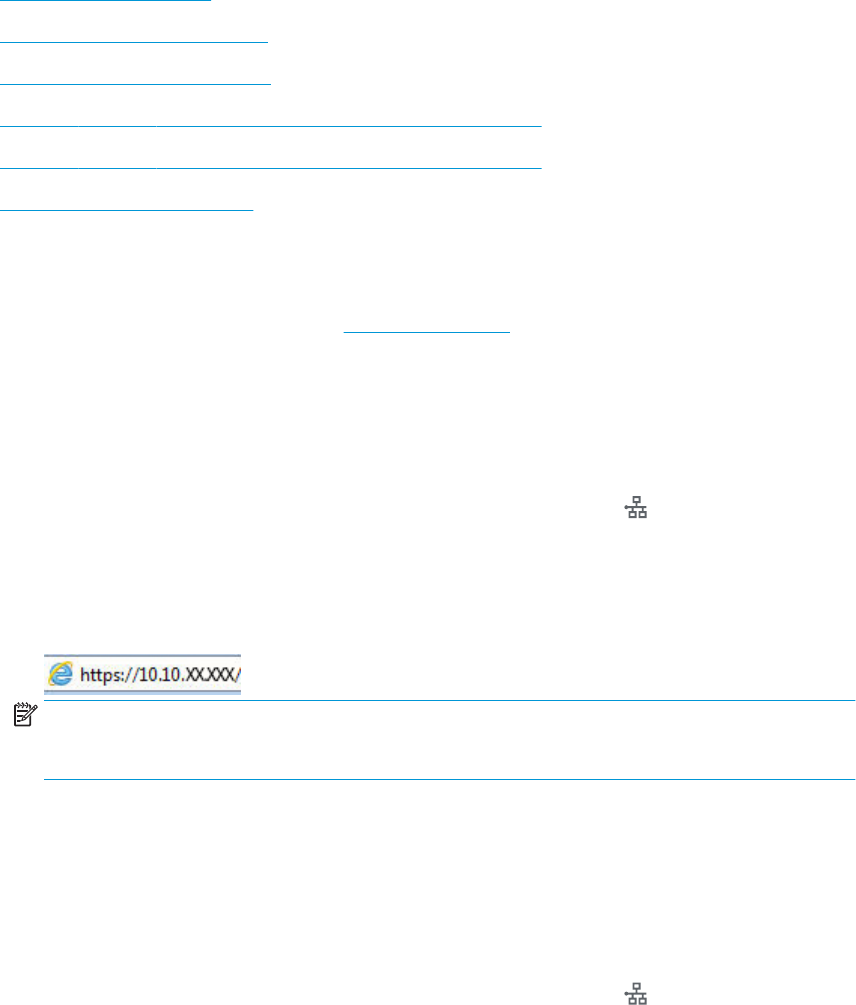
1. Open the HP Embedded Web Server (EWS):
a. From the Home screen on the printer control panel, touch the Network button to display the IP
address or host name.
b. Open a Web browser, and in the address line, type the IP address or host name exactly as it
displays on the printer control panel. Press the Enter key on the computer keyboard. The EWS
opens.
NOTE: If the Web browser displays a message indicating that accessing the website might not be
safe, select the option to continue to the website. Accessing this website will not harm the
computer.
2. Click the Networking tab to obtain network information. Change settings as needed.
Rename the printer on a network
To rename the printer on a network so that it can be uniquely identied, use the HP Embedded Web Server.
1. Open the HP Embedded Web Server (EWS):
a. From the Home screen on the printer control panel, touch the Network button to display the IP
address or host name.
ENWW Congure IP network settings 83