
Operation Manual

WARNING! To reduce the risk of personal injury,
adjust the volume before putting on headphones,
earbuds, or a headset. For additional safety
information, see the Regulatory, Safety, and
Environmental Notices. To access this guide,, type
support in the taskbar search box, and then select
the HP Support Assistant app.
NOTE: When a device is connected to the jack, the
computer speakers are disabled.
NOTE: Be sure that the device cable has a 4-
conductor connector that supports both audio-out
(headphone) and audio-in (microphone).
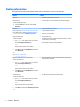
(10) MicroSD card reader Reads optional memory cards that store, manage,
share, or access information.
(11) Micro SIM slot (select products only) Supports a wireless subscriber identity module (SIM)
card. If a micro SIM card was not preinstalled in your
tablet, see Installing a micro SIM card (select products
only) on page 9.
(12) Micro HDMI jack Connects an optional video or audio device, such as a
high-denition television, any compatible digital or
audio component, or a high-speed High Denition
Multimedia Interface (HDMI) device.
(13) Micro USB 2.0 port Connects an optional USB device, such as a keyboard,
mouse, external drive, printer, scanner or USB hub.
(14) Battery light
●
White: The computer is connected to external
power and the battery is charged from 90 to 99
percent.
●
Amber: The computer is connected to external
power and the battery is charged from 0 to 90
percent.
●
Blinking amber: A battery that is the only
available power source has reached a low
battery level. When the battery reaches a critical
battery level, the battery light begins blinking
rapidly.
●
O: The battery is fully charged.
(15) Power connector Connects an AC adapter.
(16) Speaker Produces sound.
(17) Stylus pen and location Allows you to write on the screen.
*The antennas are not visible from the outside of the computer. For optimal transmission, keep the areas immediately around the
antennas free from obstructions. For wireless regulatory notices, see the section of the Regulatory, Safety, and Environmental Notices
that applies to your country or region. To access this guide, type support in the taskbar search box, and then select the HP Support
Assistant app.
6 Chapter 2 Components