
HP Designjet 4000 Printer Series - User Guide






Printing with the Windows printer engine
1. Ensure that you have installed the HP-GL/2 and RTL driver.
2. When you are ready to print, select File > Page and Print Setup, and select the
HP-GL/2 and RTL driver.
3. Click the Properties button and configure the driver as follows.
– In the Paper/Quality tab, set Print Quality to Best.
– In the Color tab, ensure that the Print In Grayscale box is unchecked, and
set Color Matching Method to 'sRGB'.
4. Click the OK button.
5. Select File > Print.
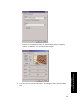
– Printer Engine: select Windows Printer (it will use the selected raster driver).
– Output Image Quality (Resample Ratio): this setting alters the number of
pixels sampled when an ArcMap print file is generated; it determines how
many pixels in the map document will be used to create the file sent to the
printer.
• Fast = 1:5
• Normal = 1:3
• Best = 1:1 (as is)
The 'Best' choice requires a lot of resources to process the print job, and
could cause long processing times and perhaps out–of–memory messages,
159
How do I get accurate colors
from my printer?