HP Color LaserJet CP6015 Series HP Color LaserJet CP6015 系列 CP6015n CP6015dn CP6015de CP6015x Getting Started Installation Guide Read Me First 安装入门指南 必读文档 セットアップ ガイド 설치 시작 설명서 はじめにお読みください 먼저 읽어보십시오. คูมื่ อการติดตั้งและเริ่มต้นใช้งาน โปรดอาน ่ Panduan Persiapan Instalasi 安裝入門指南 Terdaftar di Deperindag Provinsi DKI Jakarta No : 0089/1.824.
Copyright and License © 2008 Copyright Hewlett-Packard Development Company, L.P. Reproduction, adaptation or translation without prior written permission is prohibited, except as allowed under the copyright laws. The information contained herein is subject to change without notice. The only warranties for HP products and services are set forth in the express warranty statements accompanying such products and services. Nothing herein should be construed as constituting an additional warranty.
Overview 概要 概述 개요 Tinjauan Umum ภาพรวม 概述 In-box documentation 同梱されている文書 包装箱附带的说明文档 제품 설명서 Dokumentasi dalam kotak เอกสารที่อยูในกล อง ่ ่ Product information 製品情報 产品信息 제품 정보 Informasi produk ขอมู ้ ลผลิตภัณฑ์ Unpack the product 製品の開梱 打开产品包装 제품 개봉 Membuka kemasan produk นำเครื่องพิมพ์ออกจากกลอง ่ Set up the product プリンタの設定 제품 설정 安装产品 隨附文件 產品資訊 拆開產品包裝 設定產品 Menyiapkan produk ติดตั้งเครื่องพิมพ์ Install the software 安装软件 ソフトウェアのインストール 소프트웨어 설치 Menginstal perangkat lunak ติ
In-box documentation 同梱されている文書 包装箱附带的说明文档 제품 설명서 Dokumentasi dalam kotak เอกสารที่อยูใ่ นกลอ่ ง Getting Started Guide Software CD • User Guide • Job Aids • Software Drivers • Installer • Embedded Web Server Guide HP Support Flyer セットアップ ガイド ソフトウェア CD • ユーザー ガイド • クイック リファレンス ガイド • ソフトウェア ドライバ • インストーラ • 内蔵 Web サーバのユーザー ガイド HP のサポートに関するパンフレット 入门指南 软件 CD • 用户指南 • 辅助工具 • 软件驱动程序 • 安装程序 • 内嵌式 Web 服务器指南 HP 支持说明 시작 안내서 소프트웨어 CD • 사용 설명서 • 작업 지원 • 소프트웨어 드라이버 • 설치 프로그램 • 내장 웹 서버 설명서 HP 지원 안내서 Panduan Persi
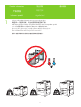
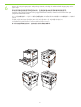
1 Product information 製品情報 产品信息 제품 정보 Informasi produk ขอ้ มูลผลิตภัณฑ์ Select a well-ventilated, dust-free area to position the product 请选择一个通风良好、无尘的区域来放置本产品。 Pilih tempat yang berventilasi cukup dan bebas debu untuk menempatkan produk. プリンタの設置場所には、通気がよく埃の少ない場所を選びます。 환기가 잘 되고 먼지가 없는 지역을 선택하여 제품을 내려 놓습니다.
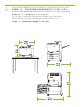
2 Space requirements. NOTE: The back of the product must be at least 152 mm (6 in) from the wall. 空间要求。 注: 产品后部与墙壁之间的距离必须至少为 152 毫米(6 英寸)。 Persyaratan ruang. CATATAN: Bagian belakang produk sedikitnya harus 152 mm (6 in) dari dinding. 設置要件 注記:プリンタの背面を壁から 152 mm 以上離します。 공간 요구 사항. 주: 제품 뒷면과 벽 사이에 적어도 152mm의 공간이 있어야 합니다. ขอ้ กำหนดดา้ นพื้นที่ หมายเหตุ: ดา้ นหลังของเครื่องพิมพ์ตอ้ งอยูห่ า่ งจากผนังอยา่ งนอ้ ย 152 มม.
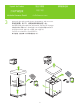
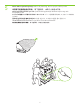
Unpack the Product 製品の開梱 打开产品包装 제품 개봉 Membuka Kemasan Produk นำเครื่องพิมพ์ออกจากกล่อง 3 Remove the box and set aside the CD, documentation, and accessories. 取出包装箱,将 CD、说明文档和附件放在一边。 Keluarkan kotak dan siapkan CD, dokumentasi, dan aksesori di pinggir. 外箱を取り除き、同梱されている CD、文書、アクセサリを別に保管しておきます。 상자를 분리하고 CD, 설명서 및 부속품을 꺼내 보관합니다.
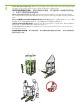
4 Printers with optional input trays: Remove the packaging and the ramps. Remove the plastic bag and install the ramps onto the pallet. Use two people to gently roll the device off of the pallet. 装有可选进纸盘的打印机: 取出包装材料和坡道。 取下塑料袋,将坡道安装在货盘 上。 由两个人轻轻将设备滚离货盘。 Printer dengan baki masukan opsional: Lepaskan kemasan dan landasan. Lepaskan kantung plastiknya dan pasang landasan pada palet. Gunakan dua orang untuk mendorong perangkat dengan perlahan dari palet.
5 Printers without optional input trays: Remove the plastic bag. Use four people to lift the product. 未安装可选进纸盘的打印机: 取下塑料袋。 由四个人抬起本产品。 Printer tanpa baki masukan opsional: Lepaskan kantung plastiknya. Gunakan empat orang untuk mengangkat produk. オプションの給紙トレイが取り付けられていないプリンタ:ビニール袋を取り除きます。4 人でプリンタを持ち 上げます。 선택사양 입력 용지함 불포함 프린터: 비닐을 벗깁니다. 네 사람이 제품을 들어 올립니다.
6 Remove all orange shipping tape and packing material, including all cardboard and shipping tape in the paper trays. 取出所有橙色装运胶带和包装材料,包括进纸盘中的所有纸板和装运胶带。 Lepaskan semua pita pengiriman warna jingga dan bahan kemasan, termasuk semua karton dan pita pengiriman dalam baki kertas. オレンジ色の搬送用テープとボール紙などの梱包材をすべて取り外します。用紙トレイの搬送用テープもはが します。 주황색 포장용 테이프와 용지함의 보드지 및 포장용 테이프 등 포장재를 제거합니다.
7 Attach the duplex switchback tray (not needed on the CP6015n model). 连接双面打印回转纸盘(CP6015n 型号不需要使用该纸盘)。 Pasang baki pembalik dupleks (tidak diperlukan pada model CP6015n). 両面印刷スイッチ切替トレイを取り付けます (CP6015n モデルを除く)。 양면 스위치백 용지함을 장착합니다(CP6015n 모델은 해당 안됨).
8 Set up the product プリンタの設定 安装产品 제품 설정 Menyiapkan produk ติดตั้งเครื่องพิมพ์ Remove protective film from the control panel. 取下控制面板上的保护膜。 Lepaskan lapisan pelindung dari panel kontrol. コントロール パネルの保護フィルムをはがします。 제어판에서 보호용 필름을 제거합니다. แกะแผ่นฟิล์มป้องกันออกจากแผงควบคุม 從控制面板取下防護薄膜。 9 Install control panel language overlay. 安装控制面板语言贴面。 Pasang lapisan bahasa panel kontrol. コントロール パネルの言語オーバーレイをインストールします。 제어판 언어 오버레이를 설치합니다.
NOTE: Four print cartridges and imaging drums are already installed; no action is required. 注: 已经安装四个打印碳粉盒和成像鼓;不需要执行任何操作。 CATATAN: Ada empat kartrid cetak dan drum pencitraan yang sudah dipasang; tidak perlu melakukan apa-apa. 注記:プリント カートリッジ (4 個) とイメージ ドラムは、出荷時にあらかじめ取り付けられています。 주: 토너 카트리지와 이미지 드럼 4개가 이미 설치되어 있습니다. 별도의 조치가 필요하지 않습니다.
10 Connect a network cable (optional). 连接网络电缆(可选)。 Hubungkan kabel jaringan (opsional). ネットワーク ケーブルを接続します (オプション)。 네트워크 케이블을 연결합니다(옵션). ตอสายเคเบิ ลเครือข่าย (เลือกทำ) ่ 連接網路電纜 (選用)。 NOTE: Do not connect the USB cable until prompted during software installation. 注: 在软件安装期间提示连接 USB 电缆之前,不要连接 USB 电缆。 CATATAN: Jangan dulu hubungkan kabel USB hingga diperintahkan saat instalasi perangkat lunak. 注記:ソフトウェアのインストール中に、画面に指示が表示されるまで USB ケーブルを接続しないでください。 주: 소프트웨어를 설치하는 동안 메시지가 나타날 때까지 USB 케이블을 연결하지 마십시오.
11 Printers with optional input trays: When the product is in its final location, make sure the front wheels are facing forward and then press down on the lever to lock the wheels. 装有可选进纸盘的打印机: 将产品移至最终安装位置后,请务必使前脚轮朝前,然后 按下手柄以锁定前脚轮。 Printer dengan baki masukan opsional: Bila produk telah berada di lokasi akhirnya, pastikan roda depan menghadap ke depan kemudian tekan tuasnya untuk mengunci roda.
12 Plug in the power cord, turn on the product, and wait for the green ready light. 插入电源线,打开产品并等待绿色的就绪指示灯亮起。 Tancapkan kabel listriknya, nyalakan produk, dan tunggu lampu hijau tanda siap menyala. 電源コードを接続し、 プリンタの電源を入れ、緑の印字可ランプが点灯するまで待ちます。 전원 코드를 연결하고 장치를 켠 후 녹색 준비 표시등이 켜질 때까지 기다립니다.
13 If prompted on the control panel, set the product language, date, and time, following the prompts on the display. 如果控制面板出现提示,请按照显示屏上的提示设置产品语言、日期和时间。 Jika diminta pada panel kontrol, aturlah bahasa produk, tanggal, dan waktu, dengan mengikuti perintah pada layar. コントロール パネルに指示が表示されたら、言語および日付と時刻を設定します。 제어판에 메시지가 나타나면 디스플레이의 메시지에 따라 제품 언어, 날짜 및 시간을 설정합니다.
14 One at a time, open each paper tray and adjust the paper guides. 每次打开一个纸盘,调整各纸盘的纸张导板。 Satu per satu, buka setiap baki kertas dan sesuaikan pemandu kertasnya. 用紙トレイを一度に 1 つずつ開けて、用紙ガイドを調節します。 용지함을 한번에 하나씩 열어 용지 조정대를 조정합니다. เปิดถาดกระดาษ และปรับตัวกั้นกระดาษทีละถาด 逐一打開每個紙匣,然後調整紙張導板。 15 Load the paper. 装入纸张。 Muat kertas. 用紙をセットします。 용지를 넣습니다.
16 Close the paper tray. 合上纸盘。 Tutup baki kertas. 用紙トレイを閉じます。 용지함을 닫습니다. ปิดถาดกระดาษ 合上紙匣。 17 After you close each paper tray, verify that the correct paper size and type for that tray is displayed on the control panel. This must be done for each tray as it is loaded. 合上各个纸盘后,检查控制面板为该纸盘显示的纸张尺寸和类型是否正确。 必须在装 入各个纸盘时完成此操作。 Setelah Anda menutup setiap baki kertas, pastikan bahwa jenis dan ukuran kertas yang benar untuk baki itu ditampilkan pada panel kontrol.
18 (Optional) By default, an IP Address will automatically be assigned using DHCP. If you need to assign a static IP address for your network, do the following: A) On the control panel, press Menu. B) Press to highlight CONFIGURE DEVICE, and press . C) Press to highlight I/O, and press . D) Press to highlight EMBEDDED JETDIRECT, and press . E) Press to highlight TCP/IP, and press . F) Press to highlight IPV4 SETTINGS, and press . G) Press to highlight CONFIG METHOD and press .
19 To verify print function, print a configuration page. A) From the control panel, press Menu. B) Press to highlight INFORMATION, and then press . C) Click to highlight PRINT CONFIGURATION, and then press to print the configuration page. Keep this configuration page for use during the software install process 要验证打印功能,请打印配置页。 A) 在控制面板上,按下“菜单”。 B) 按下 以 突出显示“信息”,然后按下 。 C) 单击 以突出显示“打印配置”,然后按下 以打印配置页。 保存好此配置页,以备安装软件时使用。 Untuk verifikasi fungsi cetak, cetak halaman konfigurasi.
20 If you have an optional output accessory to install, use the instructions in the Installation Guide that comes attached to the accessory box. 如果要安装可选输出附件,请按照附件箱中随附的《安装指南》中的说明进行操作。 Jika Anda punya aksesori keluaran opsional untuk dipasang, gunakan petunjuk dalam Installation Guide [Panduan Instalasi] yang dipasang pada kotak aksesori. オプションの排紙アクセサリを取り付ける場合は、 アクセサリの箱に付属している 『インストール ガイド』の手 順に従ってください。 선택사양 출력 부속품을 사용하려면 부속품 상자와 함께 제공되는 설치 설명서의 지침을 따르십시오.
Install Windows software 安装 Windows 软件 Menginstal perangkat lunak Windows Windows ソフトウェアのインス トール Windows 소프트웨어 설치 安裝 Windows 軟體 ติดตั้งซอฟตแ์ วรข์ อง Windows Note: Do not connect the USB cable until prompted during the software installation. 注: 在软件安装期间提示连接 USB 电缆之前,不要连接 USB 电缆。 Catatan: Jangan dulu hubungkan kabel USB hingga diperintahkan saat instalasi perangkat lunak. 注記:画面に指示が表示されるまで USB ケーブルを接続しないでください。 주: 소프트웨어를 설치하는 동안 메시지가 나타날 때까지 USB 케이블을 연결하지 마십시오.
21 Install software. A) Insert the HP Color LaserJet CP6015 CD that came with the printer. B) At the welcome screen, click Install. The Setup Wizard appears. C) Follow the on screen instructions. Note: If the welcome screen does not appear, click Start and then click Run. Type X:\SETUP, where X corresponds to the CD‑ROM drive letter, and then click OK. D) Click Finish. If prompted, restart the computer.
22 Test the software installation. Print a page from any program to verify software is correctly installed. 测试软件安装是否成功。 通过任意程序打印一页,检查软件是否安装正确。 Ujilah instalasi perangkat lunak. Cetak halaman dari program apa saja untuk memastikan perangkat lunak telah diinstal dengan benar. ソフトウェアのインストール状態をテストします。任意のアプリケーションで適当なページを印刷し、 ソフトウェア が正常にインストールされたことを確認します。 소프트웨어 설치 상태를 검사합니다. 아무 프로그램에서나 페이지를 인쇄하여 소프트웨어가 제대로 설 치되었는지 확인합니다.
Install Mac software Mac ソフトウェアのインストール 安装 Mac 软件 Mac 소프트웨어 설치 Menginstal perangkat lunak Mac ติดตั้งซอฟต์แวร์สำหรับเครื่อง Mac 24 安裝 Mac 軟體 Macintosh users: Connect the USB cable. Macintosh 用户: 连接 USB 电缆。 Pengguna Macintosh: Hubungkan kabel USB. Macintosh ユーザー:USB ケーブルを接続します。 Macintosh 사용자: USB 케이블을 연결합니다. สำหรับผู้ใช้เครื่อง Macintosh: ต่อสายเคเบิล USB Macintosh 使用者: 連接 USB 纜線。 25 Insert the Administration CD and complete the Easy Install procedure.
26 Test the software installation. Print a page from any program to verify software is correctly installed. 测试软件安装是否成功。 通过任意程序打印一页,检查软件是否安装正确。 Ujilah instalasi perangkat lunak. Cetak halaman dari program apa saja untuk memastikan perangkat lunak telah diinstal dengan benar. ソフトウェアのインストール状態をテストします。任意のアプリケーションで適当なページを印刷し、 ソフトウェア が正常にインストールされたことを確認します。 소프트웨어 설치 상태를 검사합니다. 아무 프로그램에서나 페이지를 인쇄하여 소프트웨어가 제대로 설 치되었는지 확인합니다.
http://www.hp.
© 2008 Hewlett-Packard Development Company, L.P. www.hp.