
HP Embedded Digital Sending - PC Fax Send User Manual

ENWW Installing the MFP Send Fax driver 5
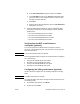
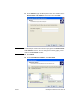
d In the File Download dialog box that opens, click Save.
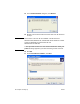
e In the File Name text box on the Save As window that opens,
type the location on your computer where you want to save
the MFP Send Fax driver file.
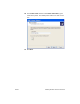
f Click Save.
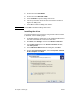
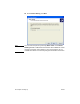
g After the file has been downloaded, close the File Download
dialog box if necessary.
5 Install the downloaded firmware file. See the appropriate MFP
user guide for instructions about installing the remote firmware
update (RFU):
• HP LaserJet 4345mfp Series User Guide
• HP Color LaserJet 4730mfp User Guide
• HP LaserJet 9040mfp/9050mfp User Guide
• HP Color LaserJet 9500mfp User Guide
Verifying that the MFP e-mail feature is
configured (optional)
The e-mail function on the MFP must be configured in order to
receive an e-mail notification when a fax has been sent by using the
MFP Send Fax driver.
Note The e-mail notification feature is optional.
See the appropriate MFP user guide for instructions about configuring
the e-mail function:
● HP LaserJet 4345mfp Series User Guide
● HP Color LaserJet 4730mfp User Guide
● HP LaserJet 9040mfp/9050mfp User Guide
● HP Color LaserJet 9500mfp User Guide
Configuring the billing code feature (optional)
HP MFP Send Fax supports the use of billing codes when sending
faxes.
Note The billing code feature is optional.
To enable the billing code feature through the MFP control panel, use
the following steps:
1 On the MFP control panel, press Menu.
2 Scroll to and touch FAX.