
HP Embedded Digital Sending - PC Fax Send User Manual
44 Chapter 4 Troubleshooting ENWW
Functional errors
The following sections describe issues that might occur when using
the HP MFP Send Fax driver.
The test page does not print
View the MFP Send Fax configuration information on the MFP control
panel to determine if the driver installation was successful and the PC
Fax Send feature is enabled.
To view the configuration information, use the following steps:
1 On the MFP control panel, press Menu.
2 Scroll to and touch FAX.
3 Scroll to and touch FAX SEND.
4 Scroll to and touch PC FAX SEND.
5 Touch ENABLED.
6 Touch EXIT.
The e-mail notification is disabled
The e-mail notification type is disabled under Notification on the
Setup tab in the HP MFP Send Fax dialog box because the e-mail
function is not enabled on the MFP.
See the appropriate user guide for instructions about configuring the
e-mail function:
● HP LaserJet 4345mfp Series User Guide
● HP Color LaserJet 4730mfp User Guide
● HP LaserJet 9040mfp/9050mfp User Guide
● HP Color LaserJet 9500mfp User Guide
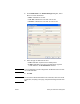
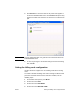
To update the HP MFP Send Fax settings after enabling the e-mail
feature on the MFP, use the following steps:
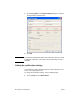
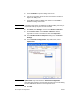
1 Click Start, click Settings, and then click Printers and Faxes.
2 Under Printer Tasks on the Printers and Faxes window,
right-click the name of the MFP and then click Properties.
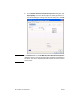
3 In the HP MFP Send Fax Properties dialog box, click Device
Settings.