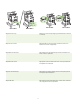
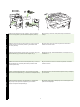
HP LaserJet M5035x/M5035xs MFP Getting Started Guide Guide de mise en route Leitfaden zur Inbetriebnahme Guida introduttiva Guía de instalación inicial Beknopte handleiding Primers passos Guia de Primeiros Passos Lea esto primero
Copyright and License © 2006 Copyright Hewlett-Packard Development Company, L.P. Copyright et licence © 2006 Copyright Hewlett-Packard Development Company, L.P. Reproduction, adaptation or translation without prior written permission is prohibited, except as allowed under the copyright laws. La reproduction, l’adaptation ou la traduction, sans autorisation écrite préalable, sont interdites sauf dans le cadre des lois sur le copyright. The information contained herein is subject to change without notice.
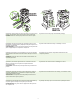
1499 mm (59 in) 1372 mm (54 in) • Prepare the site • Préparation du site • Vorbereiten des Standorts • Preparazione della superficie • Prepare el lugar donde va a colocar el dispositivo • De locatie voorbereiden To position the device, select a sturdy, well-ventilated, dust-free area that is out of direct sunlight to position the device. Assurez-vous que vous disposez de suffisamment de place pour installer le périphérique.
• Unpack the device • Déballage du périphérique • Auspacken des Gerätes • Disimballaggio della periferica • Desembale el dispositivo • Het apparaat uitpakken 2) Remove the packaging, plastic cover, and locate the ramps (callout 1). 1) Ouvrez le carton et retirez-le. Mettez de côté le carton de l’unité d’impression recto-verso. 2) Retirez l’emballage, le couvercle en plastique et repérez les rampes (schéma 1). 1) Öffnen Sie den Karton, und entnehmen Sie das Gerät.
3) Install the ramps. 4) Make sure that the wheel locks are in the unlocked position, and then roll the device onto the ramps and off of the pallet. WARNING: Make sure that two people roll the device off of the pallet. 5) Remove all of the orange tape and cardboard packaging. 3) Installation des rampes. 4) Vérifiez que les bloqueurs de roues sont déverrouillés, puis faites glisser le périphérique le long des rampes et hors du plateau de chargement.
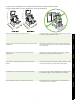
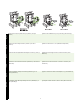
M5035 MFPx M5035 MFPxs 7) Remove the cardboard in tray 4, tray 5, and tray 6 (XS model only). 6) Retirez les verrous oranges du bac 2 (schéma 1) et du bac 3 (schéma 2). 7) Retirez le carton du bac 4, 5 et 6 (Modèle XS uniquement). 6) Entfernen Sie die orangefarbenen Sicherungen von Fach 2 (1) und 3 (2). 7) Entfernen Sie die Pappe aus Fach 4, Fach 5 und Fach 6 (nur für Modell XS). 6) Rimuovere i fermi arancioni dal vassoio 2 (didascalia 1) e dal vassoio 3 (didascalia 2).
8) Open the upper-right door and remove the orange print-cartridge locks. 9) Remove the print cartridge from its packaging, remove the strip (callout 1) and orange tape, insert the print cartridge (callout 2) into the device, and then close the upper-right door (callout 3). 8) Ouvrez le panneau avant droit et retirez les verrous oranges de la cartouche d’impression.
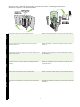
M5035 MFPx M5035 MFPxs 11) Adjust the tray guides to match the media size, and then load the media. 10) Ouvrez chaque bac pour charger les supports. 11) Ajustez les guides des bacs selon le format du support utilisé, puis chargez le support. 10) Öffnen Sie alle Fächer, um Druckmedien einzulegen. 11) Passen Sie die Fachführungen an die Druckmediengröße an, und legen Sie die Medien ein. 10) Aprire i vassoi per caricare i supporti.
M5035 MFPx M5035 MFPx M5035 MFPxs M5035 MFPxs 12) Close all of the trays. 13) Move the scanner carriage shipping lock toward the back of the device so it unlocks. 12) Fermez tous les bacs. 13) Déverrouillez le verrou de transport du chariot du scanner en le déplaçant vers l’arrière du périphérique. 12) Schließen Sie alle Fächer. 13) Schieben Sie die Transportsicherung des Scanner-Schlittens nach hinten, so dass sie gelöst wird. 12) Chiudere tutti i vassoi.
M5035 MFPx M5035 MFPxs 15) If necessary, remove the control-panel overlays and install new overlays. 14) Retirez l’unité recto-verso du carton (schéma 1), retirez le couvercle de l’unité recto-verso si nécessaire (schéma 2), puis installez l’unité recto-verso (schéma 3). 15) Si nécessaire, retirez les caches du panneau de commande et installez de nouveaux caches. 14) Nehmen Sie den Duplexer aus dem Karton (1), entfernen Sie ggf. die Duplexer-Abdeckung (2), und stellen Sie den Duplexer auf (3).
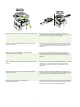
16) If you are connecting using a USB cable, wait until you are prompted at the computer in step 26 on page 17. 17) Connect the network cable and the telephone cord (for fax). 16) Si vous utilisez une connexion via un câble USB, attendez le message d’invite de l’ordinateur à l’étape 26, page 17. 17) Connectez le câble réseau et le cordon téléphonique (pour le fax). 16) Wenn Sie ein USB-Kabel anschließen möchten, warten Sie, bis Sie vom Computer dazu aufgefordert werden (Schritt 26 auf Seite 17).
M5035 MFPx M5035 MFPxs English 18) Connect the power cable. Français 18) Branchez le câble d’alimentation. Deutsch 18) Schließen Sie das Netzkabel an. Italiano 18) Collegare il cavo di alimentazione. Español 18) Conecte el cable de alimentación. Nederlands 18) Sluit het netsnoer aan.
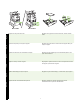
• Set up the control panel • Configuration du panneau de commande • Einrichten des Bedienfelds • Configurazione del pannello di controllo • Configure el panel de control • Het bedieningspaneel instellen M5035 MFPx M5035 MFPxs 19) Turn on the device. 20) Wait for the device to initialize (this might take a few minutes). If you are prompted at the control panel, enter the language, date, time, location, company name, and telephone (fax) number.
English Français Deutsch Italiano Español Nederlands 21) If you are connected to a network, print a test page from the control panel and check for a valid IP Address. On the control panel, touch the Network Address button, and then touch Print. The IP address information appears below “TCP/IP”. If your IP address information appears, go to step 23 on page 15. Note: Many networks provide IP addresses automatically.
22) Configure the IP address (if necessary). On the control panel, scroll to and touch Administration. Scroll to and touch Initial Setup, and then Networking and I/O. Touch Embedded Jetdirect, TCP/IP, and IPV4 Settings. Touch Manual Settings, and then enter the IP Address, Subnet Mask, and Default Gateway. 22) Configuration de l’adresse IP (si nécessaire). Sur le panneau de commande, faites défiler l’écran et appuyez sur Administration.
• Install the software • Installation du logiciel • Installieren der Software • Installazione del software • Instale el software • De software installeren Macintosh For Macintosh software installation instructions, go to step 28 on page 18. Préparation du système pour l’installation du logiciel. 23) HP recommande de fermer toutes les applications non nécessaires avant d’installer le logiciel du système d’impression.
To install a USB connection, go to step 24. Windows with a direct connection (USB). 24) Install the software from the CD before connecting the cable to the device. Note: If the New Hardware Found message appears, insert the CD. Follow the onscreen instructions, accept the default selections, and then go to step 35 on page 21. Pour installer une connexion USB, passez à l’étape 24. Windows avec connexion directe (USB). 24) Installez le logiciel à partir du CD avant de connecter le câble au périphérique.
26) Follow the onscreen instructions. When prompted, connect a USB cable between the device and the computer. Note: HP does not recommend using USB hubs. Use a USB cable that is no longer than 2 meters (6.5 feet). 25) Sur l’écran de bienvenue, cliquez sur Installer l’imprimante. L’assistant de configuration apparaît. Remarque : Si l’écran de bienvenue n’apparaît pas, cliquez sur Démarrer, puis sur Exécuter. Saisissez X:SETUP (remplacez X par la lettre du lecteur de CD-ROM), puis cliquez sur OK.
Macintosh 27) Click Finish. If prompted, restart the computer. Go to step 35 on page 21. Connect to a Macintosh computer. 28) Place the CD in the CD-ROM drive and run the installer. Complete an easy install. Note: Install the software before connecting the USB cable. 27) Cliquez sur Terminer. Si vous y êtes invité, redémarrez l’ordinateur. Passez à l’étape 35, page 21. Connexion à un ordinateur Macintosh. 28) Insérez le CD dans le lecteur de CD-ROM et exécutez le programme d’installation.
Nederlands Español Italiano Deutsch Français English Macintosh Macintosh 29) Connect a USB cable between the device and the computer. Note: HP does not recommend using USB hubs. Use a USB cable that is no longer than 2 meters (6.5 feet). Important: Perform steps 30-34 only if the USB cable was connected before the software was installed. Otherwise, go to step 35 on page 21.
Macintosh Macintosh 32) From the Printer Browser window, select the HP device. Note: If HP software is installed, the software should automatically be configured for Macintosh OS X V 10.4. 33) Click Add to create a printer queue, and then follow the prompt to manually configure the device’s installable options. Note: Macintosh OS X V 10.2 and V 10.3 might require you to manually select the printer model from the Printer Model drop-down menu.
English Français Test de l’installation du logiciel. 35) Imprimez une page à partir d’un programme quelconque pour vérifier que le logiciel est correctement installé. Remarque : Si la page ne s’imprime pas, réinstallez le logiciel. Si la page ne s’imprime pas après la réinstallation, rendez-vous à l’adresse www.hp.com/support/M5035mfp. Italiano Test dell’installazione del software. 35) Stampare una pagina da un programma per assicurarsi che il software sia installato correttamente.
• Set up digital send • Configuration de l’envoi numérique • Einrichten von Digital Sending • Configurazione dell’invio digitale • Configure el envío digital • Digitaal verzenden instellen 36) Open a web browser. 37) Type the device IP address (found on the Jetdirect configuration page). 38) Select the Digital Sending tab. 39) Complete General Settings information, such as name and e-mail address. 40) Select E-mail Settings from the left navigation menu. 41) Type the SMTP server address.
English Français Deutsch Italiano Español Nederlands 42) Select The E-mail Address Book from the left navigation area to enter frequently-used e-mail addresses and e-mail distribution lists. Note: The Fax Address Book and Fax Speed Dials are located in the left navigation area. These two features allow you to manage frequently-used fax numbers and speed dial lists.
• Install send fax driver • Installation du pilote d’envoi de fax • Installieren des Faxtreibers • Installazione del driver per l’invio dei fax • Instale el controlador Enviar fax • Faxdriver voor verzenden installeren 44) If your device has faxing capabilities and you did not install the send fax driver in step 25, insert the CD to install the driver. Select Custom, Send Fax driver, and follow the instructions.
• Register the device • Enregistrement du périphérique • Registrieren des Gerätes • Registrazione della periferica • Registre el dispositivo • Het apparaat registreren Register your device. Register at www.register.hp.com. This is the quickest and easiest way for you to register to receive the following information: technical support updates, enhanced support options, ideas and ways to use your new HP device, and news about emerging technologies. Félicitations ! Le périphérique est prêt à l’emploi.
Troubleshooting Area Control-pan el display Print Copy Symptom Cause/Remedy Blank 1) Make sure that the power cable is connected to a working power outlet. 2) Make sure that the device is turned on. See page 12 for more information. 3) If the status lights on the left side of the control panel are functioning, adjust the contrast by using the dial in the upper left of the control panel. 4) Turn off the device, reseat the formatter, and then turn on the device.
Troubleshooting Area Fax E-mail Symptom Cause/Remedy Fax icon appears gray Touch Administration, touch Initial Setup, and touch Fax Setup. Touch Required Settings and enter the location, date/time, and fax header information to make sure that the fax is configured correctly. No fax icon on the control-panel display 1) Make sure that the fax card is installed in the formatter correctly, and that none of the pins are bent.
Troubleshooting Area Staple Stack Other Symptom Cause/Remedy A job is not stapled. 1) Remove the staple cassette and check if it is jammed or empty. 2) For copy jobs, select the Staple/Collate option at the control panel. For print jobs, make sure the stapler/stacker is configured in the printer driver. 3) Use only Letter or A4-size paper for staple jobs. Staples are not holding the pages together. 1) Replace the staple cartridge with a staple cartridge that is made for this device.
Dépannage Zone Ecran du panneau de commande Impression Copie Symptôme Cause/Solution Vide 1) Assurez-vous que le câble d’alimentation est connecté à une prise murale qui fonctionne. 2) Assurez-vous que le périphérique est sous tension. Reportez-vous à la page 12 pour de plus amples informations. 3) Si les voyants d’état à gauche du panneau de commande fonctionnent, vérifiez le réglage du contraste de l’écran à l’aide de la molette de réglage de luminosité.
Dépannage Zone Symptôme Télécopie L’icône de télécopie s’affiche en gris Appuyez sur Administration, sur Configuration initiale, puis sur Configuration de télécopie. Appuyez sur Paramètres requis et saisissez l’emplacement, la date, l’heure et les informations d’en-tête de télécopie afin de vous assurer que la télécopie est configurée correctement.
Dépannage Zone Agrafage Pile Autre Symptôme Cause/Solution Vous souhaitez modifier le type de fichiers ou les paramètres de couleur des pièces jointes aux courriers électroniques Dans la fonction de courriers électronique du panneau de commande, sélectionnez Options supplémentaires pour modifier le format de fichier image avant d’envoyer le courrier électronique. Un message « Echec de la tâche » est reçu lorsqu’un document est numérisé et envoyé par courrier électronique.
Fehlerbehebung Bereich Bedienfeldanzeige Druck Problem Ursache/Maßnahme Leer 1) Vergewissern Sie sich, dass das Netzkabel mit einer funktionstüchtigen Steckdose verbunden ist. 2) Vergewissern Sie sich, dass das Gerät eingeschaltet ist. Weitere Informationen finden Sie auf Seite 12. 3) Wenn die Status-LEDs auf der linken Seite des Bedienfelds funktionieren, passen Sie über das Rädchen in der oberen linken Ecke des Bedienfelds den Kontrast an.
Fehlerbehebung Bereich Kopieren Faxen E-Mail Problem Ursache/Maßnahme Schaltflächen auf dem Touchscreen sind grau 1) Vergewissern Sie sich, dass die Scannersicherung entsperrt ist. Weitere Informationen finden Sie auf Seite 8. 2) Schalten Sie das Gerät aus und wieder ein. Leere Seiten von Kopie Legen Sie die Originalmedien mit der Druckseite nach oben in den Vorlageneinzug. Schlechte Kopierqualität 1) Wählen Sie die Option Optimierung Text/Bild, und passen Sie die Einstellungen an das Original an.
Fehlerbehebung Bereich Problem Ursache/Maßnahme Sie möchten zum Verwenden Sie den integrierten Webserver, um das standardmäßige Scannen und „Senden an Bilddateiformat zu ändern. Wählen Sie dazu Digital Sending, An E-Mail E-Mail“ das Schwarzweiß- senden und Erweitert aus.
Risoluzione dei problemi Area Display pannello di controllo Stampa Sintomo Causa/Rimedio Vuoto 1) Assicurarsi che il cavo di alimentazione sia collegato a una presa di corrente funzionante. 2) Assicurarsi che la periferica sia accesa. Vedere pagina 12 per ulteriori informazioni. 3) Se le spie di stato a sinistra del pannello di controllo funzionano, regolare il contrasto utilizzando il selettore in alto a sinistra sul pannello di controllo.
Risoluzione dei problemi Area Copia Fax E-mail Sintomo Causa/Rimedio I pulsanti del touch screen 1) Assicurarsi che il fermo dello scanner sia sbloccato. Vedere pagina 8 per vengono visualizzati in grigio ulteriori informazioni. 2) Spegnere e riaccendere la periferica. Dalla copia si ottengono pagine vuote Caricare gli originali rivolti verso l’alto nell’ADF. Scarsa qualità di copia 1) Selezionare Ottimizza testo/foto e regolare le impostazioni in modo che corrispondano all’originale.
Risoluzione dei problemi Area Cucitura Risma Altro Sintomo Causa/Rimedio Si desidera modificare il tipo di file o l’impostazione del colore per gli allegati di posta elettronica Dalla funzione e-mail del pannello di controllo, selezionare Altre opzioni per modificare il formato del file immagine prima di inviare un’e-mail.
Solución de problemas Área Pantalla del panel de control Impresión Copia Síntoma Causa/solución En blanco 1) Compruebe que el cable de alimentación está conectado a una fuente de alimentación. 2) Compruebe que el dispositivo está encendido. Consulte la página 12 para obtener más información. 3) Si los indicadores de estado de la parte izquierda del panel de control se iluminan, ajuste el contraste con el selector de la parte superior izquierda del panel de control.
Solución de problemas Área Fax Síntoma Causa/solución El icono de fax aparece en color gris Toque en Administración, a continuación en Configuración inicial y después en Configuración de fax. Toque en Parámetros obligatorios e introduzca la ubicación, fecha, hora e información de encabezado de fax para asegurarse de que el fax se ha configurado correctamente.
Solución de problemas Área Correo electrónico Grapado Apilado Otros Síntoma Causa/solución La ficha de envío digital del servidor Web incorporado (EWS) no aparece Es posible que se haya configurado una contraseña de administración. Seleccione la opción de Inicio de sesión de la esquina superior derecha del EWS.
Problemen oplossen Functie Probleem Display op het Leeg bedieningspaneel Een knop op het aanraakscherm wordt grijs weergegeven met uitroeptekens (!) Oorzaak/oplossing 1) Controleer of het netsnoer is aangesloten op een functionerende wandcontactdoos. 2) Controleer of het apparaat is ingeschakeld. Zie pagina 12 voor meer informatie. 3) Als de statuslampjes aan de linkerzijde van het bedieningspaneel functioneren, past u het contrast aan met de keuzeknop in de linkerbovenhoek van het bedieningspaneel.
Problemen oplossen Functie Kopiëren Faxen Probleem Oorzaak/oplossing De knoppen op het aanraakscherm worden grijs weergegeven 1) Controleer of de scannervergrendeling is ontgrendeld. Zie pagina 8 voor meer informatie. 2) Schakel het apparaat uit en vervolgens weer in. Lege pagina’s bij het kopiëren Plaats het originele afdrukmateriaal met de afdrukzijde naar boven in de ADF.
Problemen oplossen Functie Nieten Probleem Oorzaak/oplossing U wilt scannen en naar e-mail verzenden in zwart-witte TIFF-indeling Gebruik de EWS om de standaardindeling voor afbeeldingen te wijzigen door achtereenvolgens Digitaal verzenden, Verzenden naar e-mail en Geavanceerd te selecteren.
44
1499 mm (59 in) 1372 mm (54 in) • Prepare o local • Prepareu el lloc Para posicioná-lo, selecione um local firme, bem ventilado, sem poeira e sem exposição direta à luz solar. Assegureu-vos que hi ha prou espai per col·locar-hi el dispositiu. Per col·locar-hi el dispositiu trieu un lloc estable, ben ventilat i sense pols, protegit de la llum directa del sol. Català Português Verifique se há espaço suficiente para posicionar o dispositivo.
3) Instale as rampas. 4) Verifique se as travas das rodas estão destravadas e, em seguida, retire o dispositivo do palete, deslizando-o pelas rampas. AVISO: É recomendável pedir ajuda a mais uma pessoa para retirar o dispositivo do palete. 5) Retire toda a fita laranja e a embalagem de papelão. 3) Instal·leu les rampes. 4) Assegureu-vos que els blocatges de les rodes estan oberts i, a continuació, feu rodar el dispositiu damunt les rampes i fora del palet.
Português 9) Retire o cartucho de impressão da embalagem, remova a fita longa (ilustração 1) e a fita laranja, insira o cartucho de impressão (ilustração 2) no dispositivo e, em seguida, feche a porta superior direita (ilustração 3). 8) Obriu la porta dreta superior i traieu els pestells taronja dels cartutxos d’impressió.
M5035 MFPx M5035 MFPx M5035 MFPxs M5035 MFPxs 12) Feche todas as bandejas. 13) Mova a trava de transporte do scanner em direção à parte traseira do dispositivo para destravá-lo. 12) Tanqueu totes les safates. 13) Moveu el bloqueig de transport del carro de l’escàner fins a la part del darrere del dispositiu per desbloquejar-lo.
Português 17) Conecte o cabo de rede e o cabo telefônico (para fax). 16) Si us connecteu amb un cable USB, espereu fins que us indiquin a l’ordinador al pas 26 de la pàgina 17. 17) Connecteu el cable de xarxa i el cable telefònic (per fax). Català 16) Se você estiver usando um cabo USB para conexão, aguarde a solicitação do computador na etapa 26 na página 17. M5035 MFPx M5035 MFPxs Português 18) Conecte o cabo de alimentação. Català 18) Connecteu el cable elèctric.
• Configure o painel de controle • Configureu el tauler de control M5035 MFPx M5035 MFPxs 19) Ligue o dispositivo. 20) Aguarde a inicialização do dispositivo (isso pode levar alguns minutos). Se solicitado no painel de controle, digite o idioma, a data, a hora, o local, o nome da empresa e o número de telefone (fax). Observação: O local, o nome da empresa e o número de telefone (fax) são necessários para o recurso de fax. 19) Enceneu el dispositiu.
Português Català 22) Configure o endereço IP (se necessário). No painel de controle, navegue até a opção Administração e toque nela. Navegue até a opção Configuração inicial, toque nela e, em seguida, toque em Rede e E/S. Toque em Jetdirect incorporado, TCP/IP e Configurações IPV4. Toque em Configurações manuais e, em seguida, insira o Endereço IP, a Máscara de sub-rede e o Gateway padrão. 22) Configureu l’adreça IP (si escau). Al tauler de control, desplaceu-vos i premeu Administration (Administració).
Para instalar uma conexão USB, vá para a etapa 24. Windows com uma conexão direta (USB). 24) Instale o software pelo CD antes de conectar o cabo ao dispositivo. Observação: Se a mensagem “Novo hardware encontrado” for exibida, insira o CD. Siga as instruções exibidas na tela, aceite as seleções padrão e vá para a etapa 35 na página 21. Per instal·lar una connexió USB, aneu al pas 24. Windows amb una connexió directa (USB). 24) Instal·leu el programari del CD abans de connectar el cable al dispositiu.
27) Clique em Concluir. Se solicitado, reinicie o computador. Vá para a etapa 35 na página 21. Conecte-se a um computador Macintosh. 28) Insira o CD na unidade de CD-ROM e execute o instalador. Conclua a instalação fácil. Nota: Instale o software antes de conectar o cabo USB. 27) Feu clic a Finish (Finalitza). Si el dispositiu ho sol·licita, reinicieu l’ordinador. Aneu al pas 35 de la pàgina 21. Connecteu la impressora a un ordinador Macintosh.
Macintosh Macintosh 32) Na janela Printer Browser (Navegador da impressora), selecione o dispositivo HP. Observação: Se o software HP estiver instalado, ele deverá ser automaticamente configurado para Macintosh OS X V 10.4. 33) Clique em Add (Adicionar) para criar uma fila de impressão e, em seguida, siga o prompt para configurar manualmente as opções instaláveis do dispositivo. Observação: O Macintosh OS X V 10.2 e V 10.
Català Português Català Português • Configure o envio digital • Configureu l’enviament digital 36) Abra um navegador da Web. 37) Digite o endereço IP do dispositivo (localizado na página de configuração da Jetdirect). 38) Selecione a guia Digital Sending. 39) Preencha as informações de Configurações gerais, como nome e endereço de e-mail. 40) Selecione Configurações de e-mail no menu de navegação esquerdo. 41) Digite o endereço do servidor SMTP.
• Instale o driver de envio de fax • Instal·leu el controlador d’enviament de faxos 44) Se o dispositivo possui recursos de fax e você não instalou o driver de envio de fax na etapa 25, insira o CD para instalar o driver. Selecione Personalizar, Driver de envio de fax e siga as instruções. Observação: Consulte o HP LaserJet Analog Fax Accessory 300 User Guide (Guia do Usuário do Acessório de Fax Analógico HP LaserJet 300) no CD de instalação para obter mais informações.
Solução de problemas Área Visor do painel de controle Impressão Sintoma Causa/Solução Em branco 1) Verifique se o cabo de alimentação está conectado a uma tomada que esteja funcionando. 2) Verifique se o dispositivo está ligado. Consulte a página 50 para obter mais informações. 3) Se os indicadores de status na lateral esquerda do painel de controle estiverem funcionando, ajuste o contraste utilizando o botão de ajuste localizado na parte superior esquerda do painel de controle.
Solução de problemas Área Cópia Fax Sintoma Causa/Solução Os botões na tela sensível ao toque aparecem acinzentados 1) Verifique se a trava do scanner está destravada. Consulte a página 48 para obter mais informações. 2) Desligue o dispositivo e, em seguida, ligue-o novamente. Páginas de cópia em branco Coloque a mídia original voltada para cima no AAD. Cópia de baixa qualidade 1) Selecione Otimizar texto/figura e ajuste as configurações de forma que correspondam ao original.
Solução de problemas Área E-mail Grampos Pilha de papéis Outras Sintoma Causa/Solução A guia de envio digital no EWS (embedded Web server, servidor da Web incorporado) não é exibida Uma senha administrativa pode estar configurada. Selecione Efetuar logon no canto superior direito do servidor da Web incorporado. Ao tentar enviar um e-mail, a mensagem “O gateway de e-mail não está respondendo” é exibida no visor do painel de controle 1) O endereço de gateway SMTP pode estar incorreto.
Resolució de problemes Àrea Pantalla del tauler de control Símptoma Causa/solució En blanc 1) Assegureu-vos que el cable elèctric està connectat a un endoll que funciona. 2) Assegureu-vos que el dispositiu està encès. Per obtenir més informació, vegeu la pàgina 50. 3) Si els llums d’estat del costat esquerre del tauler de control funcionen, ajusteu el contrast mitjançant el dial de la part esquerra superior del tauler de control.
Resolució de problemes Àrea Còpia Fax Símptoma Causa/solució El botons de la pantalla tàctil apareixen de color gris 1) Assegureu-vos que el bloqueig de l’escàner és obert. Per obtenir més informació, vegeu la pàgina 48. 2) Apagueu el dispositiu i, a continuació, torneu a encendre’l. Pàgines en blanc de la còpia Carregueu el material original a l’ADF boca amunt.
Resolució de problemes Àrea Correu electrònic Símptoma Causa/solució No apareix la pestanya d’enviament digital al servidor web incrustat (EWS) Potser hi ha configurada una contrasenya administrativa. Seleccioneu Log On (Connecta) a la cantonada dreta superior de l’EWS. A la pantalla del tauler de control apareix Email Gateway Not Responding (No respon la passarel·la de correu electrònic) quan s’intenta enviar un correu electrònic 1) Potser l’adreça de la passarel·la SMTP és incorrecta.
© 2006 Hewlett-Packard Development Company, L.P. www.hp.