
HP LaserJet M5025/M5035 MFP - (mulitple language) Getting Started Guide

17
English
简体中文
Bahasa indonesia
日本語
ไทย
한국어
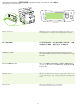
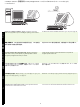
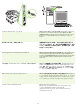
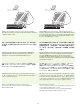
25) Connect a USB cable between the device and the computer. Note: HP
does not recommend using USB hubs. Use a USB cable that is no longer
than 2 meters (6.5 feet).
Important: Perform steps 26-30 only if the USB cable was connected
before the software was installed. Otherwise, go to step 31.
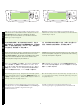
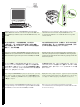
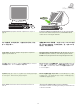
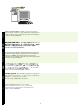
26) From Apple System Preferences (available in the Apple drop-down
menu) click Print & Fax, and then click the Printing tab at the top of the
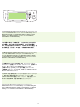
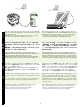
window. 27) To add your device, click the “+” icon to launch the Printer
Browser. By default, the Printer Browser displays devices that are
connected through USB, Bonjour, and AppleTalk networking.
25) 用 USB 电缆连接设备和计算机。注:HP 不推荐使用
USB 集线器。使用的 USB 电缆长度不能超过 2 米(6.5 英
尺)。
重要提示:只有在安装软件之前连接了 USB 电缆,才能执
行步骤 26-30。否则,请转至步骤 31。
26) 从 Apple 系统预置 (位于 Apple 下拉菜单中)中单击
打印和传真,然后单击窗口顶部的打印选项卡。 27) 要添加
设备,请单击 “+”图标以启动打印机浏览器。默认情况
下,打印机浏览器会显示通过 USB、 Bonjour 和 AppleTalk
联网连接的设备。
25) USB ケーブルでデバイスとコンピュータを接続します。注記:HP
では USB ハブの使用はお勧めしません。長さ 2m (6.5 フィート ) 以下の
USB ケーブルを使用してください。
重要:手順 26 〜 30 はソフトウェアをインストールする前に USB ケー
ブルを接続した場合にだけ実行してください。それ以外の場合は、手
順 31 に進みます。
26) Apple の [ システム環境設定 ] (Apple ドロップダウン メニューから利
用可能 ) から、[ プリントとファックス ] をクリックし、ウィンドウの上
部にある [ プリント ] タブをクリックします。27) デバイスを追加するに
は、「+」アイコンをクリックして、プリンタ ブラウザを起動します。デ
フォルトでは、プリンタ ブラウザには、USB、Bonjour、および
AppleTalk ネットワーク経由で接続されているデバイスが表示されます。
25) USB 케이블로 장치와 컴퓨터를 연결하십시오 . 주 :USB 허브는 사용
하지 않는 것이 좋습니다 . USB 케이블 길이는 최대 2m(6.5ft.) 이어야 합니
다 .
중요 : 소프트웨어를
설치하지 않고 USB 케이블을 꽂은 경우에만 26 단계 -
30 단계를 따르십시오 . 그렇지 않은 경우에는 31 단계를 따르십시오 .
26) Apple System Preferences(Apple System 환경설정 )(Apple 드롭다운
메뉴에 표시됨 ) 에서 Print & Fax( 인쇄 및 팩스 ) 누른 후 창 상단에 있는
Printing( 인쇄 ) 탭을 누르십시오 . 27) 장치를 추가하려면 '+' 기호를 눌러
Printer Browser( 프린터 탐색기 ) 를 실행하십시오 . 기본적으로 , Printer
Browser( 프린터 탐색기 ) 에는 USB, Bonjour, AppleTalk 네트워크에 연결
된 장치만 표시됩니다 .
25)
เชื่อมตอสายเคเบิล USB ระหวางเครื่องพิมพและคอมพิวเตอร หมายเหตุ: HP
ไมแนะนําใหใชฮับ
USB ใชสาย USB ที่ยาวไมเกิน 2 เมตร (6.5 ฟุต)
ขอสําคัญ: ทําตามขั้นตอนที่
26-30 ในกรณีที่ เชื่อมตอสายเคเบิล USB
ไวแลวกอนติดตั้งซอฟตแวรหากไมเปนเชนนั้น ใหไปขั้นตอนที่
31
26)
จาก Apple System Preferences (อยูในเมนูดรอปดาวน Apple) คลิกที่ Print &
Fax
และคลิกที่แถบ Printing ที่ดานบนของหนาตาง 27) ในการเพิ่มเครื่องพิมพของคุณ
คลิกไอคอน
“+” เพื่อเริ่มตน Printer Browser ตามคาเริ่มตนนั้น Printer Browser
จะแสดงอุปกรณที่เชื่อมตอกับ
USB, Bonjour และเครือขาย AppleTalk
25) Menghubungkan kabel USB antara perangkat dan komputer.
Catatan: HP tidak menganjurkan penggunaan hub USB. Gunakan kabel
USB yang panjangnya tidak lebih dari 2 meter (6,5 kaki).
Penting: Lakukan langkah 26-30 hanya jika kabel USB tidak terhubung
sebelum perangkat lunak diinstal. Jika tidak, lanjutkan ke langkah 31.
26) Dari Apple System Preferences (tersedia dalam menu tarik-turun
Apple) klik Print & Fax, dan kemudian klik tab Printing di atas window.
27) Untuk menambahkan perangkat Anda, klik ikon “+” untuk membuka
Printer Browser. Secara default, Printer Browser menampilkan berbagai
perangkat yang terhubung melalui jaringan USB, Bonjour, dan AppleTalk.