
Technical data






Using Console and Service Processor Interfaces
Network Configuration for a Service Processor
HP System Partitions Guide: Administration for nPartitions, rev 5.1
148
Configuring Service Processor Network Settings
This procedure (Command menu, LC command) configures the service
processor’s customer LAN and private LAN network settings from the
service processor Command menu.
Step 1. Connect to the server complex’s service processor, login as an
administrator, and enter CM to access the Command menu.
Use telnet to connect to the service processor, if possible.
If a service processor is at its default configuration (including default
network settings), you can connect to it using either of these methods:
• Establish a direct serial cable connection through the service
processor’s local RS-232 port, a 9-pin D-shaped connector (DB9).
On HP Superdome servers this port is labeled “Local RS-232”. On HP
rp8400 servers it is the “Local Console” port. On HP rp7410 servers
use the DB9 connector that is labeled “Console”.
• Access a PC or workstation on the same subnet as the service
processor, modify its network routing tables to include the default
customer LAN IP address, then telnet to the service processor. The
procedure to modify networking and connect is:
1. Access a PC or workstation on the service processor’s subnet.
2. Modify the network routing tables for the PC or workstation by
using the route add 192.168.1.1
ClientName
command,
where
ClientName
is the network name of the PC or
workstation.
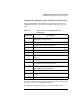
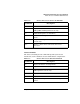
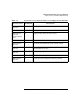
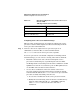
Table 3-6 Default Configuration for Service Processor
Private LAN
(HP Superdome Servers Only)
Private LAN IP Address 192.168.2.10
Private LAN Host Name priv-00
Private LAN Subnet Mask 255.255.255.0
Private LAN Gateway 192.168.2.10