
Technical data





An Overview of nPartition Boot and Reset
nPartition Boot Activity Monitoring
HP System Partitions Guide: Administration for nPartitions, rev 5.1
186
nPartition Boot Activity Monitoring
On HP nPartition servers you can monitor the nPartition boot
process—from power-on or reset to HP-UX start-up—using the Virtual
Front Panel (VFP) view of the nPartition.
Each nPartition has its own VFP that displays details about the
nPartition’s cells and the nPartition’s boot state and activity.
NOTE After you add or remove cells from the nPartition, you must exit and
re-enter the nPartition’s VFP to update the list of cells the VFP displays.
Monitoring nPartition Boot Activity [Service Processor]
Use the following procedure (service processor Main menu, VFP option) to
access an nPartition Virtual Front Panel for monitoring the nPartition’s
boot status.
Step 1. From the Main menu, enter VFP to select the Virtual Front Panel option.
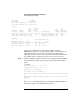
GSP MAIN MENU:
Utility Subsystem FW Revision Level: SR_XXXX_D
CO: Consoles
VFP: Virtual Front Panel
CM: Command Menu
CL: Console Logs
SL: Show chassis Logs
HE: Help
X: Exit Connection
GSP> VFP
If you are accessing the service processor using a single-partition-user
account, selecting the VFP option takes you directly to the nPartition’s
Virtual Front Panel.
If accessing the GSP using an operator or administrator account, you can
select the VFP for any single nPartition, or can select a system VFP that
displays the nPartition state and activity for all nPartitions within the
server complex.