
Technical data





An Overview of nPartition Boot and Reset
Hanged HP-UX and Running HP-UX Detection
HP System Partitions Guide: Administration for nPartitions, rev 5.1
188
Hanged HP-UX and Running HP-UX Detection
This section describes how you can determine whether HP-UX still is
running on an nPartition even when you are unable to login or access the
nPartition console.
You also may wish to reference the information in the procedure
Configuring Automatic System Restart for a nPartition on page 236 for
details on configuring an nPartition to reboot when HP-UX has hanged
on it for over three minutes.
Detecting if HP-UX is Running or Hanged on an nPartition
To determine whether HP-UX is running or has hanged on an nPartition
use this procedure (first check the Virtual Front Panel, then check the
Chassis Logs menu’s Live Logs display, then the nPartition’s Console).
Refer to the chapter Using Console and Service Processor Interfaces on
page 125 for details on service processor login accounts and features.
Step 1. Access and view the nPartition’s Virtual Front Panel (VFP).
Login to the service processor (GSP or MP) for the server where the
nPartition resides, enter VFP to access the VFP menu, and select the
nPartition whose boot state you want to check.
• To exit an nPartition’s VFP, type ^b (Control-b).
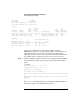
• When HP-UX has booted on the nPartition, HPUX heartbeat is
displayed as the partition state when you view the nPartition VFP.
• If HP-UX is alive, an asterisk (*) blinks on and off in the partition
state area of the nPartition VFP.
Also see Boot States and Activities for nPartitions and Cells on page 194
for details interpreting the VFP status.
Step 2. If the nPartition VFP indicates that HP-UX has booted but is not alive,
exit the VFP and view the live chassis logs for the nPartition.
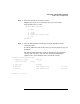
At the GSP main menu, enter SL to enter the Show chassis Logs menu,
and enter L to select the Live Chassis Logs display from the Chassis Logs
menu.